
Connecting Your Bank
You can connect your bank accounts to Weekly to make entering your transactions in easier and also so you make sure you don’t miss any transactions. If you connect your bank accounts (and credit card accounts) Weekly will periodically check your bank for new transaction and then download them so you can map them to your budget items, Safe-to-Spend, Funds or you can ignore them.
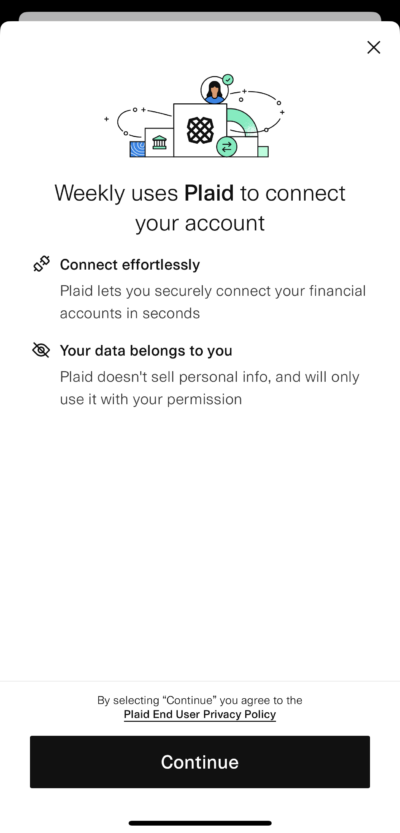
We use a third party service called Plaid, to handle the connecting and downloading of transactions (see also: How does Weekly handle information security.”
How to Connect Bank Accounts
Connecting your bank is a PRO feature (there is a free trial of PRO for 7 days) so you will need a PRO account to access the functionality. Once you signup for PRO there are several ways to get the place were you add your bank accounts.
1 – If you signup for Weekly PRO during the onboarding process, we will prompt you to connect a bank.
2 – On the Accounts page, you can add a new Account by hitting the (+) button on the top right or by tapping the “Link Accounts” button.
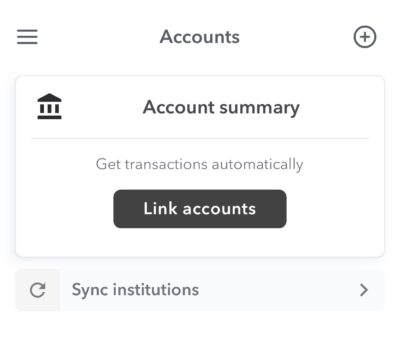
Guide to Connecting Bank
Here is a step-by-step guide to connecting banks for Plaid.
Step 1 – Accept Plaid End User Policy
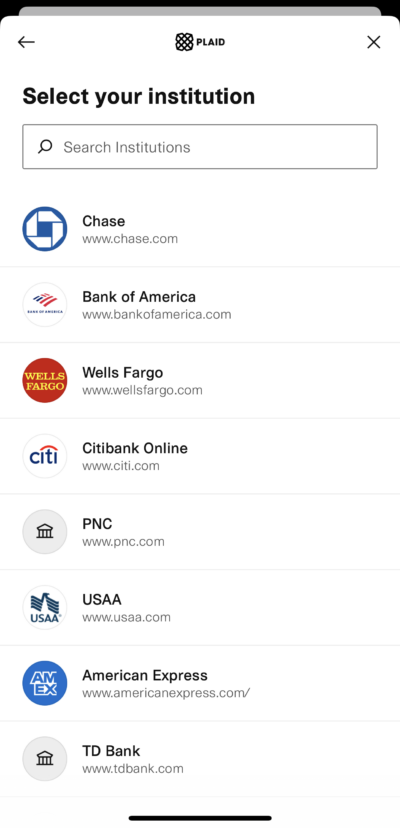
Step 2 – Select your Bank
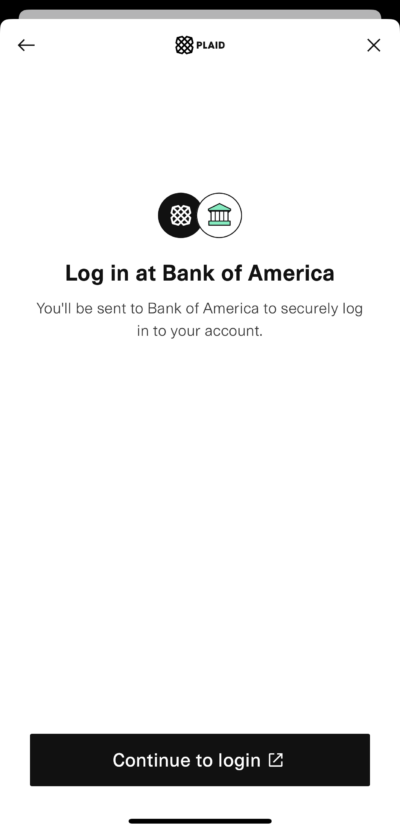
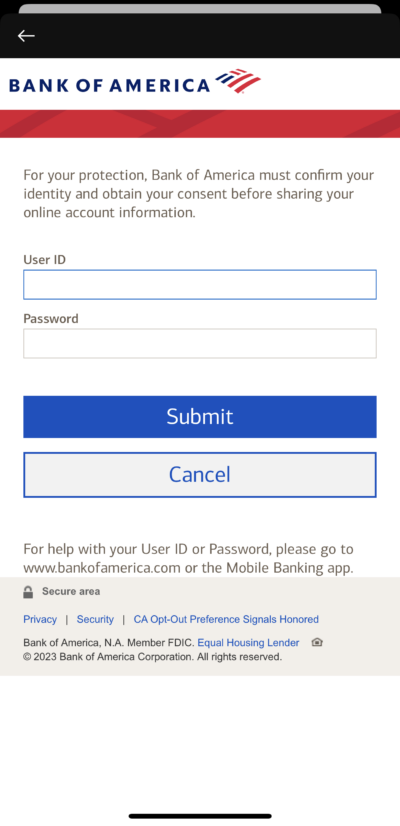
Step 3 – Login to your Bank
In this example we are going to choose “Bank of America”.
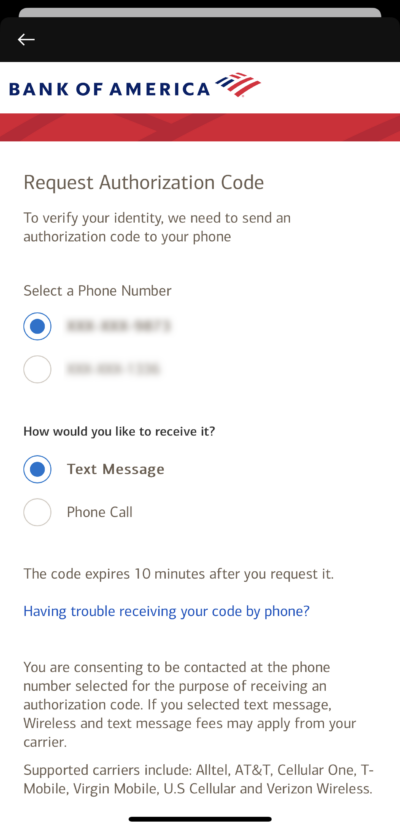
Step 4 – Authorize
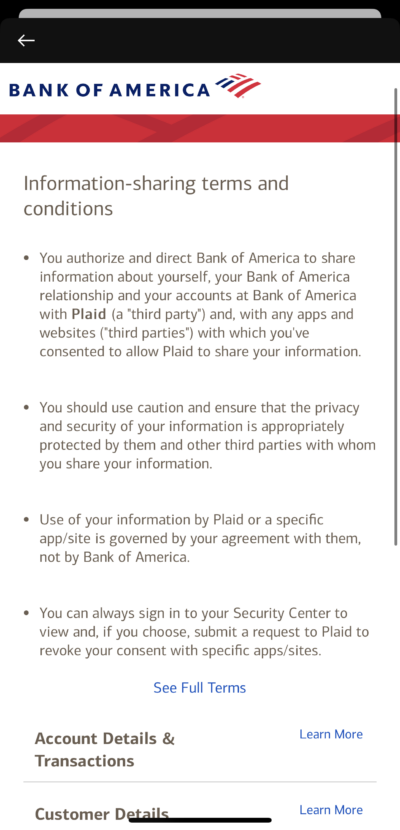
Step 5 – Agree to Information Sharing
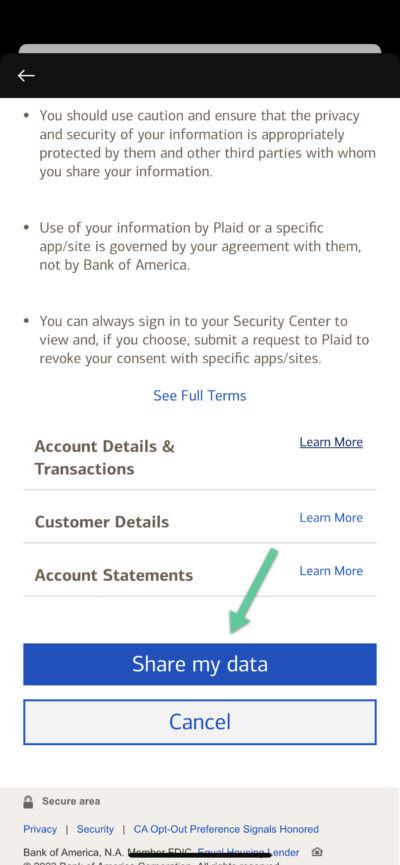
Review Your Accounts
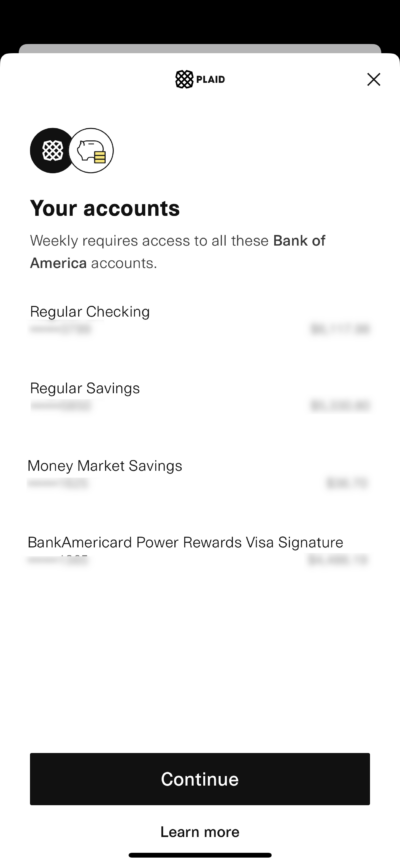
Success! Your Accounts will show up in Weekly.
Once you connect your bank Weekly with automatically download your latest transactions so you can review them.
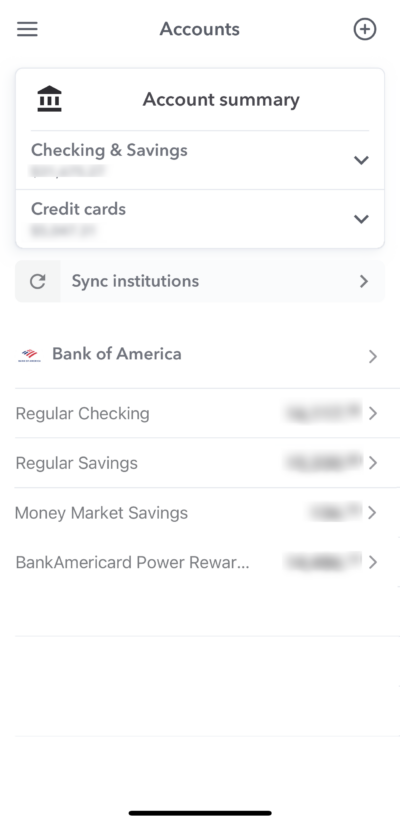
How do I connect my bank accounts to Weekly?
Once you have discovered your weekly Weekly Spending Limit, Weekly will prompt you to “Link An Account”. From there you choose your bank, add in your bank login info and then choose which accounts you will like to sync.
If you missed out on linking a bank when you first setting up your account or if you’d like to link additional bank or credit card accounts, you can link new bank or credit card accounts by clicking on the left side top menu, then select Accounts, and then tap the plus (+) button on the top right corner. Active subscribers can add up to 10 institutions.
Accounts
The Accounts page is where you see the bank accounts and credit cards that are connected to Weekly and their account balances. You can also initiate a sync and turn accounts “on and off” whether the transactions associated with them are visible in Weekly.
You can find the “Accounts” page by tapping the upper left hand menu and tapping “Accounts”.
Here is a guide to the Accounts page.
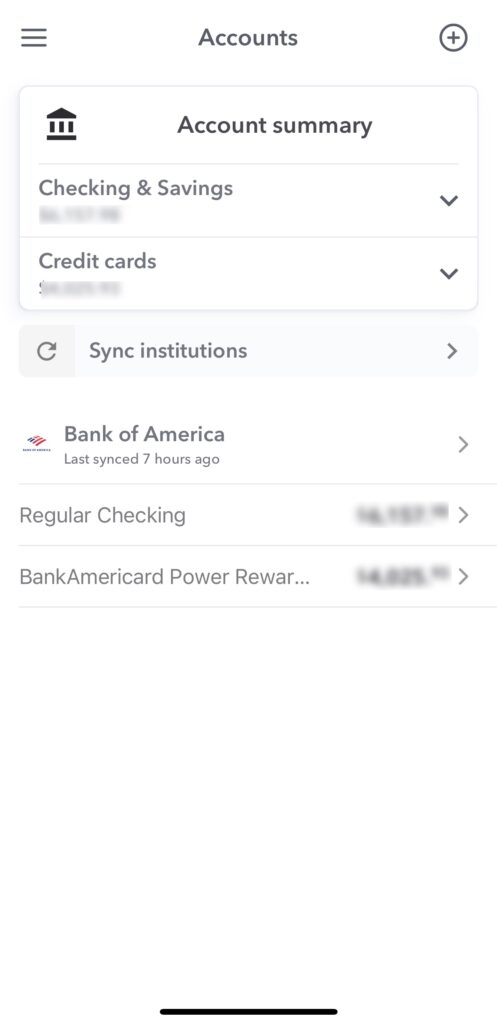
Accounts Page
The accounts page shows you all the bank accounts and credit cards that you have, add new accounts
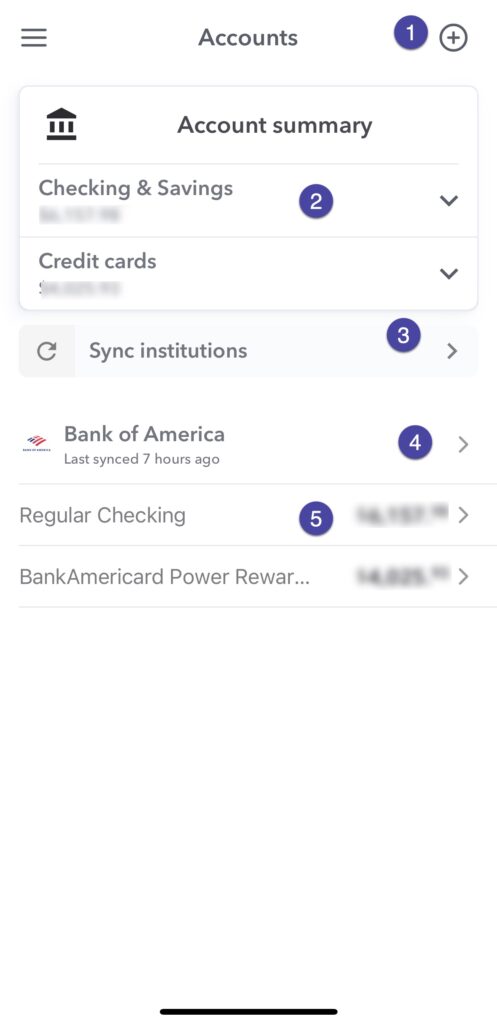
1 – Add New Account
If you want to connect a new bank or credit card account, tap the (+) button on the Accounts page.
2 – Checking and Savings and Credit Card Balances
The Account summary shows you the total balance of your accounts by account type – Checking & Savings or Credit cards. So if you have a couple credit cards on two different banks, say one at Bank of America and one at Chase, both credit cards balances would be added together and shown here. Then if you tap on the Checking and Savings or Credit cards to see the accounts that are underneath it.
3 – Sync institutions
You can tap on “Sync institutions” to get start an On-Demand Sync.
4 – Bank (Turn on and off Account)
This shows the total balance of the bank account. You can tap on the bank page and see all the account page and turn on and off any individual account.
5 – Account Transaction Detail
This shows the individual checking and credit card account totals. If you tap on any individual account you can see the
Institution Detail
The institution detail page allows you to manage accounts, see the sync history, update your connection, or delete the connection all together.
To get to this page go to the Money page in the bottom tab bar and select Accounts tab at the top of the screen and tap the institution name you want to see.
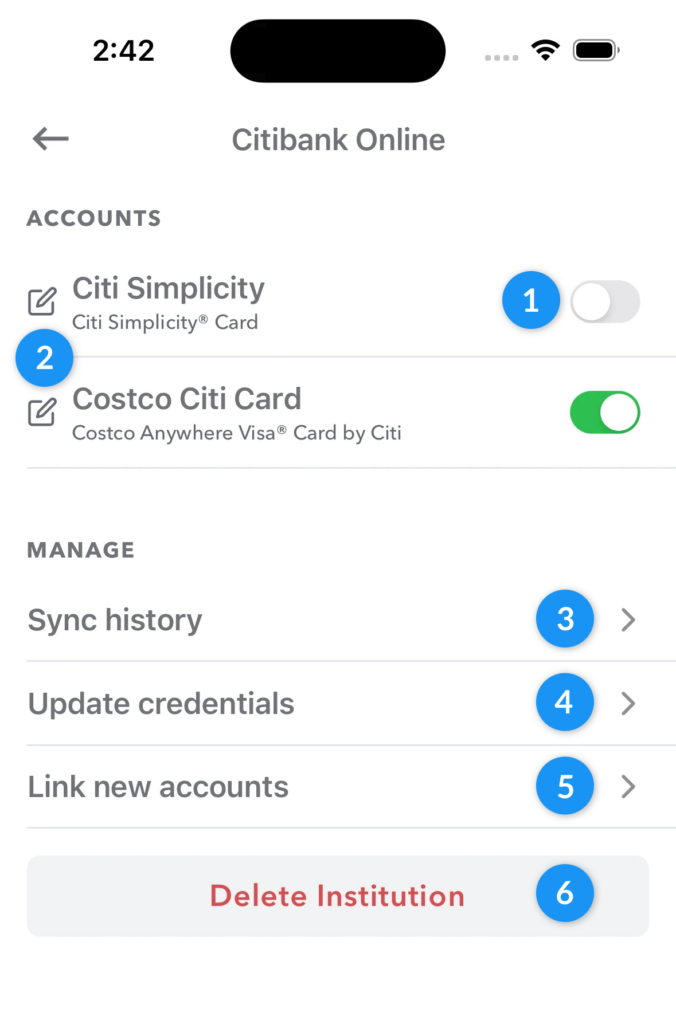
1 – Account Toggle
Under the Accounts header you can see all the checking, savings and credit cards accounts associated with the institution. There may be accounts that you don’t want included in your Weekly budget. You can easily turn off these accounts by tapping the toggle switch to the right of the account.
Weekly will continue to sync with accounts that are off but you won’t see any transactions or balances. You can turn back on an account at any time. If you’ve already reviewed transactions for an account and you turn it off, the reviewed transactions will stay still be active in your budget.
2 – Edit Account Name
The account names provided by banks aren’t always the most friendly. You can rename any account by tapping on the edit icon to the left of the account name.
3 – Sync history
Tap “Sync history” to see a history of the times that Weekly has connected to this institution and downloaded transactions.
4 – Update Credentials
If you ever need to change your bank username and password, you can do so by tapping “Update Credentials”.
5 – Link New Accounts
If you’ve added a new account to an existing connection, you can go through the Plaid authentication flow again to start syncing your new accounts with Weekly. Sometimes it can take a few days before new accounts are available.
6 – Delete Institution
Deleting an institution will remove all the connection information from Weekly. Confirmed transactions will remain but associated bank data will be removed. If you are interested completely deleting your transaction data (and Weekly account) you can tap “Delete Account” under “Profile“.
What financial institutions should I link to Weekly?
Weekly supports automatically importing transactions from your financial institutions. We recommend you link any institutions that you use to spend money with. If you have other accounts with those institutions that don’t reflect spending (like business accounts or investment funds) you can easily disable those accounts.
We support syncing with over 11,500 institutions so you’ll be able to set up a connection with most institutions. You can link up to 10 institutions at a time.
Some institutions are not supported but transactions can be entered manually. Read more about why you may want to enter transactions manually even if you’ve linked your bank account.