
Account, Billing & App Settings
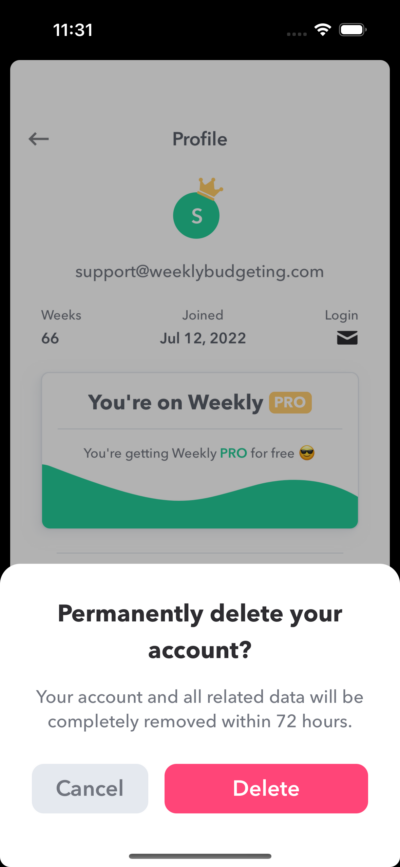
You can easily delete your Weekly account and all of your data by going to the More tab and then opening your Profile page by tapping the green circle on the top right. Then tap the “Delete Account” button at the bottom of the screen and confirm. Your Weekly account, along with all transactions and personal data will be marked for deletion. All data will be removed within 72 hours.
If you have an active subscription you’ll be prompted to cancel it before deleting. You cannot delete an account with an active subscription.
How much does Weekly cost?
Weekly is completely free to use to set up your budget and track your purchases manually. You can optionally paid to upgrade to Weekly PRO for access to more features such as automatic transaction syncing with your bank and credit cards, setting up savings goals, and bill reminders. The Weekly PRO subscription costs $7.99 per month or $47.99 per year (50% discount).
Here’s a breakdown of different features in Weekly and Weekly PRO.
| Weekly | Weekly PRO | |
| Set Up Your Budget | Yes | Yes |
| Discover Your Safe-to-Spend | Yes | Yes |
| Track Your Purchases Manually | Yes | Yes |
| Use For Unlimited Number of Weeks | Yes | Yes |
| Download Transactions from Bank and Credit Cards | — | Yes |
| Set Up Funds To Track Savings Goals | — | Yes |
| Bill Notifications and Upcoming Bills Report | — | Yes |
| Cash Over Time Report | — | Yes |
| Cost | FREE | $7.99 / month or $47.99 / year |
Settings
You can change how Weekly looks, what your day of the week Weekly starts on and more from the “More” tab.
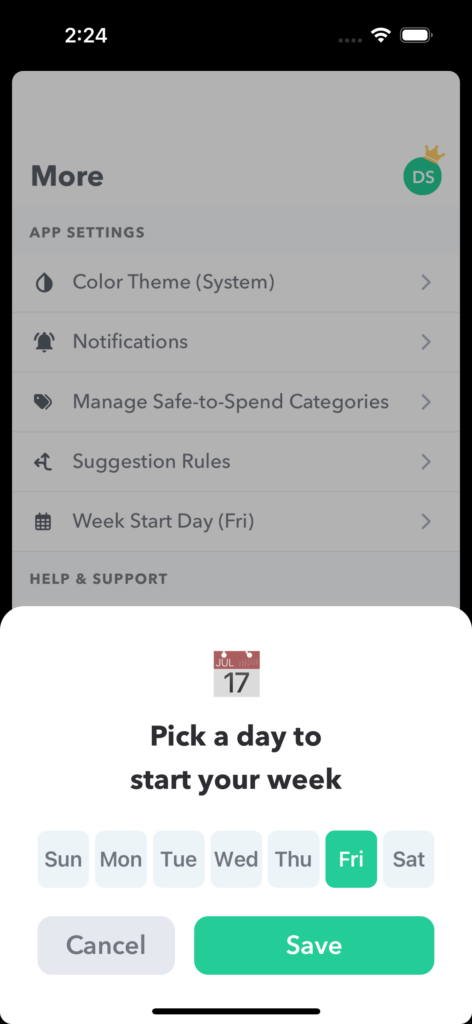
Weekly Start Day
Pick the start day for your week and tap “Save”. The day of the week you choose will be the day that your weekly spending limit will be added into your Safe-to-Spend.
What day should you pick? See more on this in our YouTube video.
Color Theme
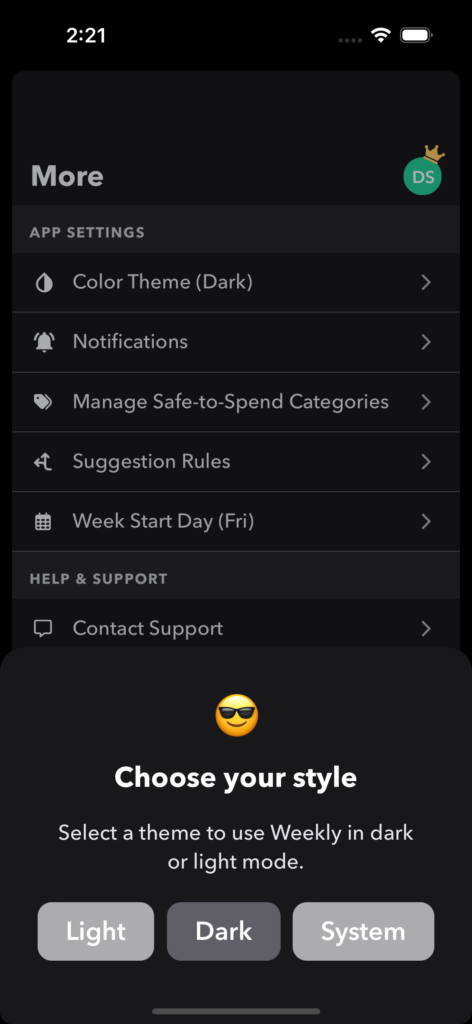
You can set Weekly color theme into “Light”, “Dark” and “System”.
“Light” mode will have a white background, “Dark” will have the black background and “System” will adjust based on your preferences you set inside of “System Preferences”.
Export transactions
If you would like to export transaction, you can under “Export transactions”.
Having an export of the data you put into Weekly can unlock your ability to do your own analysis. For example, you could use your export to do monthly reconciliations, build your own reports, and filter or categorize data to your heart’s desire. The export includes lots of data including the transaction date, amount, how it was categorized (Safe-to-Spend, Recurring, etc.), which bank account it was linked to, and a category assigned by your financial institution (see below for a full breakdown of all data).
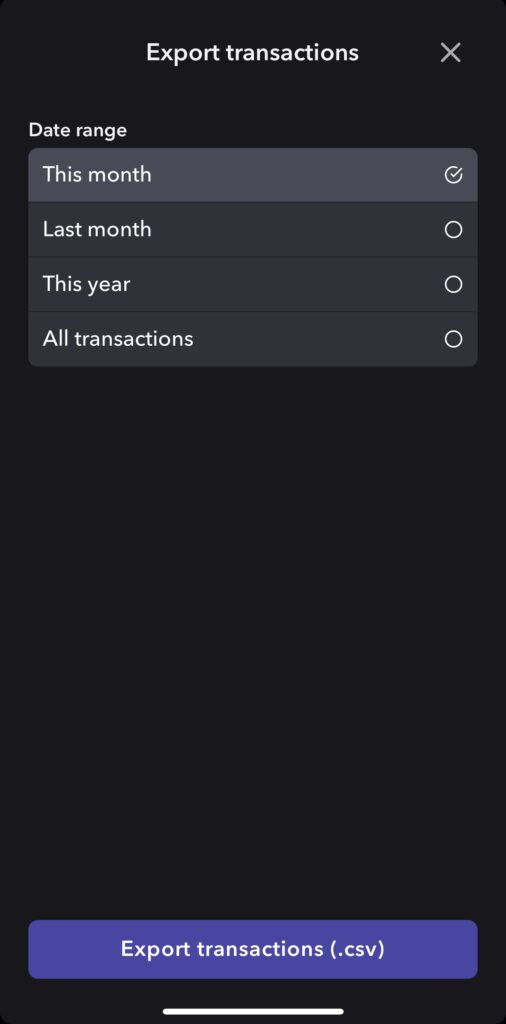
When you tap “Export transactions”, you will be given the option to chose the date range of the export.
- This month
- Last month
- This year
- All transactions
Read more details about the data you receive in our Knowledge Base article “Exporting Transactions”
Review budget items
When you first start with Weekly, you are guided through first putting in your budget by first adding in your Income, then all your committed expenses from “Housing” all the way through to “Donations”.
If you get to the end of the onboarding process and missed something or ever want to go through it again for any reason, you can by tapping “Review budget items”.
When you review budget items, you do not lose anything you have put in already, you are simply going through the onboarding process again and all your previously input items will be there.
Reset Data
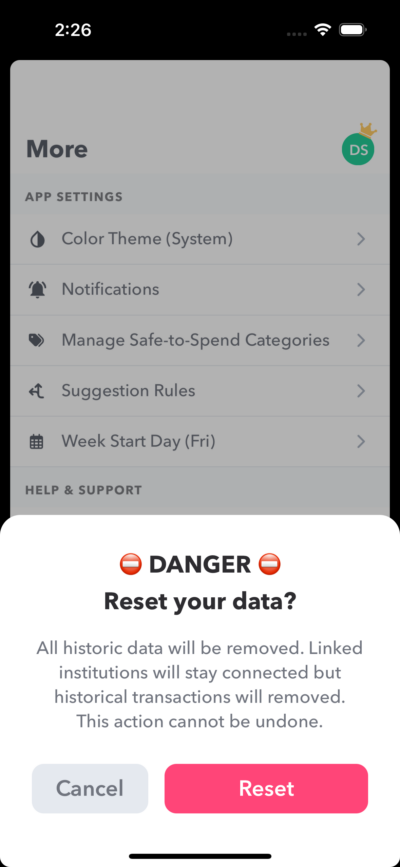
The “Reset data” option will completely reset your data and allow you start over fresh. All your weeks, budgets, funds and transactions will be removed. The only thing that doesn’t get removed is your linked institutions. If you want to remove an institution you’ll need to remove it directly.
Tapping “Reset data” will give you a prompt to confirm you want to remove all your data. After starting over you’ll be directed back to the onboarding flow and start setting up your budget.
If you want to delete your account you’ll do that from the Profile page.
Profile
The Profile page can be accessed by going to the “More” tab and tapping the green circle on the top right corner.
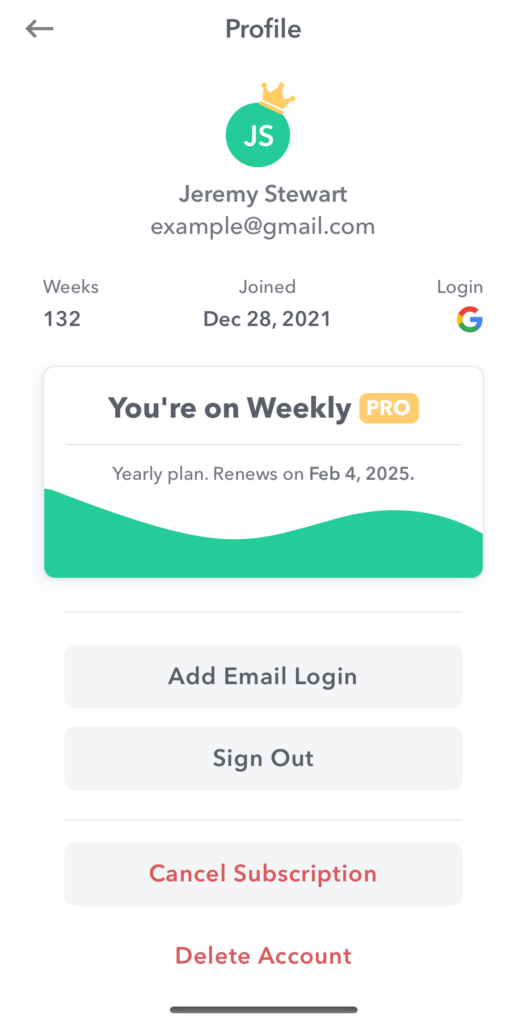
Use this page to manage your account and see relevant information.
- Email – If there is an email address associated with your Weekly account we will show it here
- Weeks – This is the number of weeks you’ve created in Weekly
- Joined – The date you joined Weekly
- Login – The type of authentication method for your account (Email/password, Google, Facebook, Apple ID)
Then there will show a card with your subscription level.
- Basic – You are using the free version of Weekly
- PRO – You are subscribed to Weekly PRO
Add Email Login
Use this to create an additional login method to share with a partner. Learn more about sharing Weekly with a partner.
Sign Out
Tap this button to sign out of Weekly.
Cancel Subscription
If you have an active subscription this button will help you navigate to the iOS Settings app where you can turn off the auto-renew.
Delete Account
If you ever want to complete delete your account you can tap on “Delete Account” and we will completely remove you account and all transaction data within 72 hours.
Is Weekly available on Android or desktop?
Weekly is currently available on iOS only. We hope to extend to other platforms in the future but don’t currently have a timeline for expanding.
Contacting Support
We love to hear from our customers!
The best way to contact us is to use the support in the App because it helps us quickly find your account and see the root of any problem you may have.
To use in app support, go to the “More” tab and tap “Contact Support”.
You can also reach out to us anytime by sending an email to support@weeklybudgeting.com or going to the website and filling in the Contact Us form on our website.
How does Weekly handle information security?
We use a service called Plaid to sync transaction and account information from users’ financial institutions. Plaid handles all the authentication and Weekly only receives the financial information you choose to share. You can read all about Plaid security practices here: https://plaid.com/safety/
Since Plaid handles all the authentication, no login credentials are ever shared with Weekly. The only data we receive from Plaid is transaction and account data (like account names and balances). All data transferred from our servers to the Weekly app is encrypted over https connections.
Also, if you ever want to cancel, we can delete your data for you permanently, you can do so by going to Profile > Delete Account.
Read more: How Do I Delete My Account
How do I reset my password?
You can reset your password by opening Weekly, tapping “Sign in” and then “Sign in with Email”. On the sign in page enter your email address and tap “Forgot your password?”.
This will send you a password reset email and you can select a new password from there.
How do I turn push notifications on or off?
If notifications are turned on, Weekly will send three types of notifications:
- Notifications when there are new transactions to review.
- Notifications when it is time to start a new week.
- Notifications if a transaction amount changes after it was posted (which happens occasionally with restaurants when tips are added later).
To turn on or off notifications, on your iPhone, go to Settings and tap Notifications. Select “Weekly” under Notification Style. Under Alerts, choose the alert style you want. If you’ve turned on Allow Notifications, you can choose when you want the notifications to be delivered – immediately or in the scheduled notification summary.