
On-Demand Syncing
Your linked financial institutions will sync periodically to pull in your latest transactions. The frequency of syncing is set by the bank but usually background syncs run a few times a day for most banks. However, there are times where you’d like to be able to sync transactions more frequently than your bank allows by default. Now you can.
On demand syncing allows you to pull your latest transactions when it’s most convenient for you.
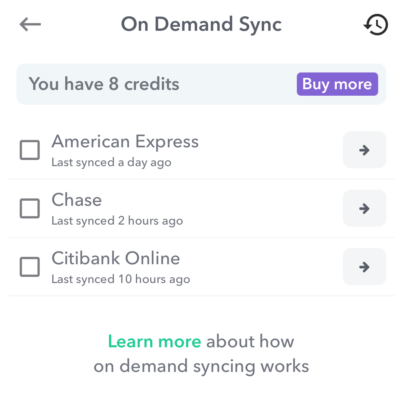
Sync Credits
On demand sync is an add-on feature and requires having sync credits. You can acquire sync credits in several ways.
- You can purchase a pack of 5 credits for 99¢ and a pack of 40 for $4.99.
- If your bank has not synced in the last 24 hours, we will provide a free sync credit for that bank.
- You can earn sync credits by submitting bug reports.
Additionally, when you first sign up for Weekly PRO, we will start you with 5 free credits so you can try it out.
Each time you sync an institution uses one sync credit. If your institution fails to sync, you will not be charged a credit.
In offering on demand syncing we want to provide more visibility into the syncing process (via the sync history view) and also give the option to trigger a sync on demand when needed. We are charged for every on demand sync we run (per institution) so we have to be strategic about how we make that available.
We feel like a sync frequency of at least every 24 hours is a minimum level of service we should provide even if user’s banks don’t sync that frequently on demand. So we do not charge sync credits when users run an on demand sync for an institution that hasn’t synced for 24 hours. You can test that out by running an on demand sync for one of your institutions that hasn’t sync for the last 24 hours.
Supported Banks
On demand syncing works for most financial institutions and there is no extra setup required. There are a small number of institutions (like Capital One) that do not support syncing on demand – in this case your bank will be listed but grayed out.
How to Use On Demand Syncing
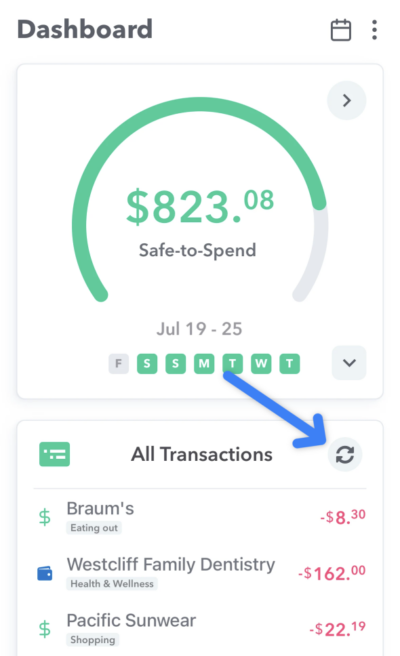
To get started just tap the sync button at the top of the Transactions card in the dashboard.
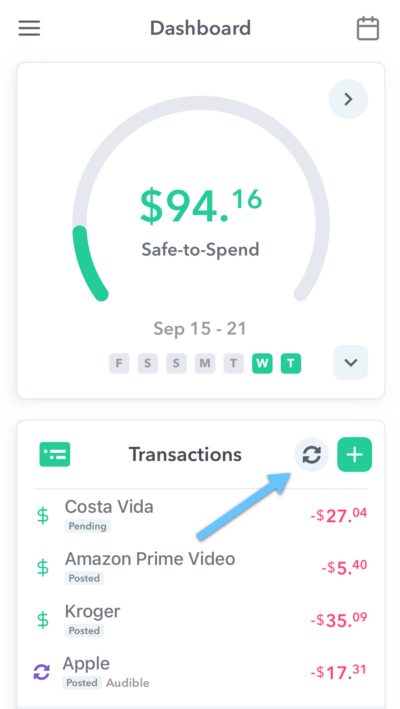
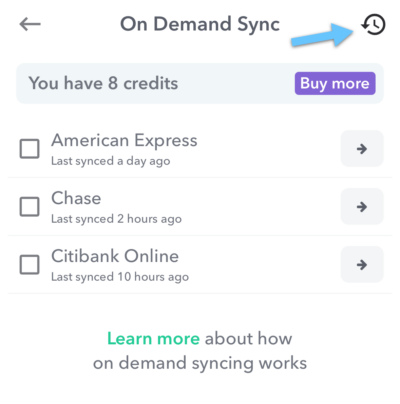
You will then be presented with a list of your connected banks. Below the name of the institution you will see the last time it was synced.
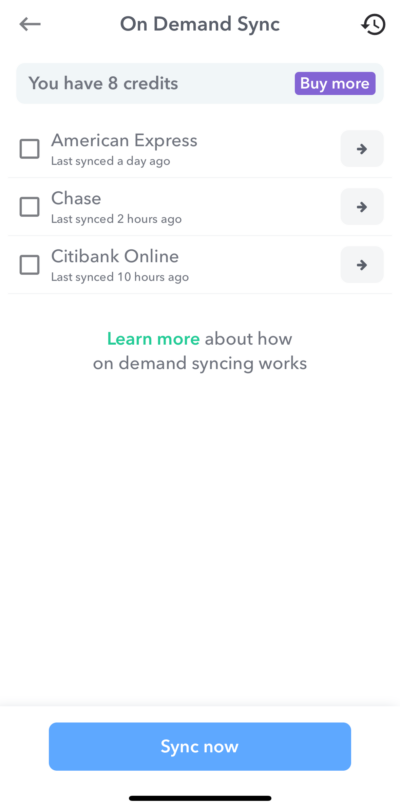
Then select the institutions you’d like to sync and press “Sync”. You will see the institution begin the syncing process.
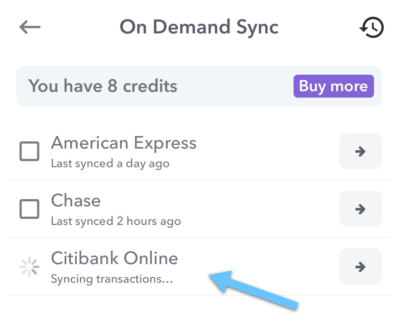
Once the sync finishes you’ll see the status of each institution sync and your transactions will appear just as they normally do.
For more info, see our FAQ about sync history.
You can click the arrow next to the bank name to see your sync history for that bank or you can click the clock icon at the top right to see syncs from all banks.
How do I see my sync history?
Each time we connect to your bank or credit card to try to download new transactions, we call this a “sync”.
Your sync history allows you to see the times your Weekly account has connected to your banks and downloaded transactions. This can be useful if you want to know if all your purchases have been downloaded into the app or if you just want to check on the health of your bank connection.
Sync History List
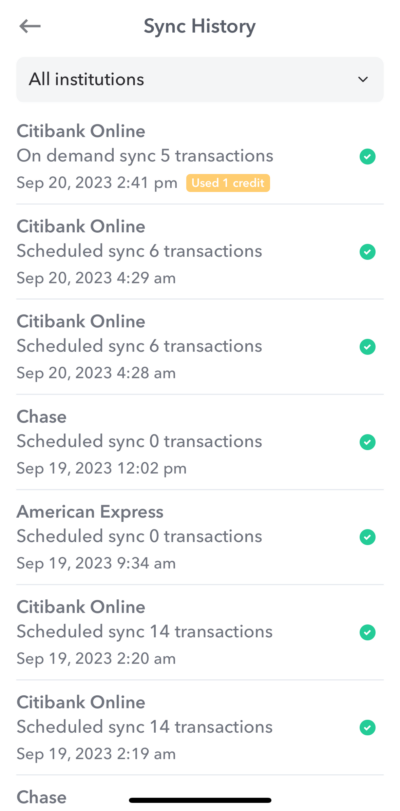
Sync history page shows a running list of the downloads that have happened between Weekly and your financial institution. Each entry will show the type of sync it was – “Scheduled” or “On Demand” – the number transactions that were downloaded and the time of the sync. There is also a check mark or an “X” to show if the sync was successful or not.
Sync Types
There are two types of syncs – “Scheduled” and “On demand”. Weekly automatically downloads your transactions based on what your bank allows by default. These are called “Scheduled” syncs. Each institution is different based on their policies.
But Weekly also allows you to sync when it’s most convenient to you. These syncs that are triggered by you are called “On Demand” sync. On demand syncing requires a sync credit which can be acquired a few different ways. (See our page on “On Demand Syncing” for details.)
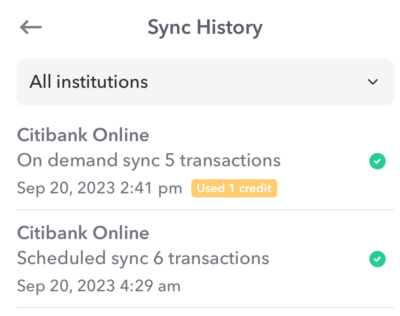
If you trigger an on demand sync that uses a credit, you’ll see a “Used 1 credit” box on that sync history item.
How to see your Sync History
Your sync history is accessible in a couple places.
First, on the “On Demand Sync” page there is a clock icon. Tap on that icon to see the syncs from all institutions.
Second, you can go to your list of accounts. Underneath the name of the bank it will show you when the last sync occurred.
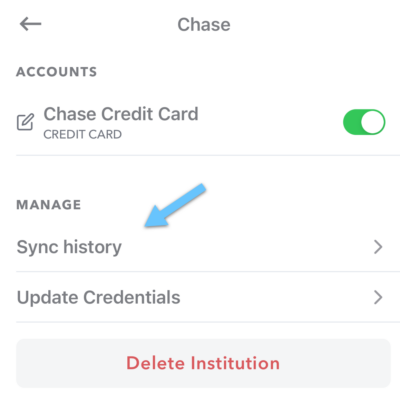
Tap on the institution and at the bottom of the screen underneath the “Manage” heading, you can see an option to see “Sync history”. Tap on that to see a list of syncs just for that institution.
Conclusion
Successful budgeting requires keeping in touch with your spending. Syncing with banks is a great way to make the inputting of transactions into Weekly easier and seeing a history of syncs can help you understand what has been downloaded into Weekly so you feel great about where you are at with your weekly spending.
How often does Weekly download new bank transactions?
The frequency of automatic syncing is determined by the bank.
Transactions from major financial institutions (i.e. Chase or Citi) are usually downloaded two or three times per day. Smaller institutions may be updated less frequently.
If you want to see how often your transactions are syncing you can check your sync history. If you want to you can run an on-demand sync to download transactions when its convenient to you. (Syncs are free if its been 24 hours or you can purchase a pack of syncs).
You might also consider adding transactions manually in between sync to keep your budget up to date.
If you are having trouble syncing please read our knowledge base article “What do I do if my bank isn’t syncing?“
On Demand Syncing
Your linked financial institutions will sync periodically to pull in your latest transactions. The frequency of syncing is set by the bank but usually background syncs run a few times a day for most banks. However, there are times where you’d like to be able to sync transactions more frequently than your bank allows by default. Now you can.
On demand syncing allows you to pull your latest transactions when it’s most convenient for you.
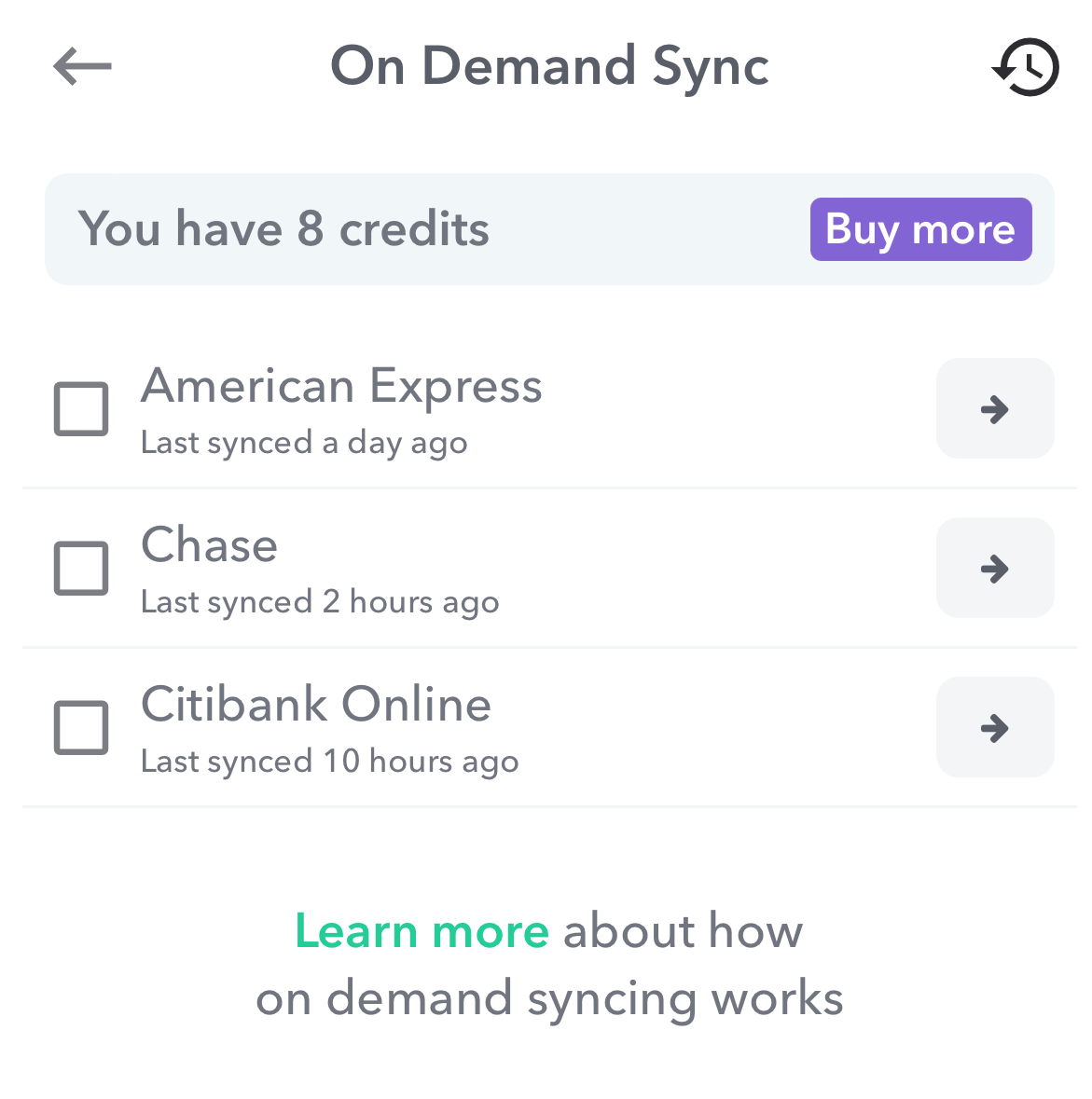
How to Use On Demand Syncing
You can get to the On Demand Sync page from both the transaction card on Dashboard or the Accounts page on the Money tab.
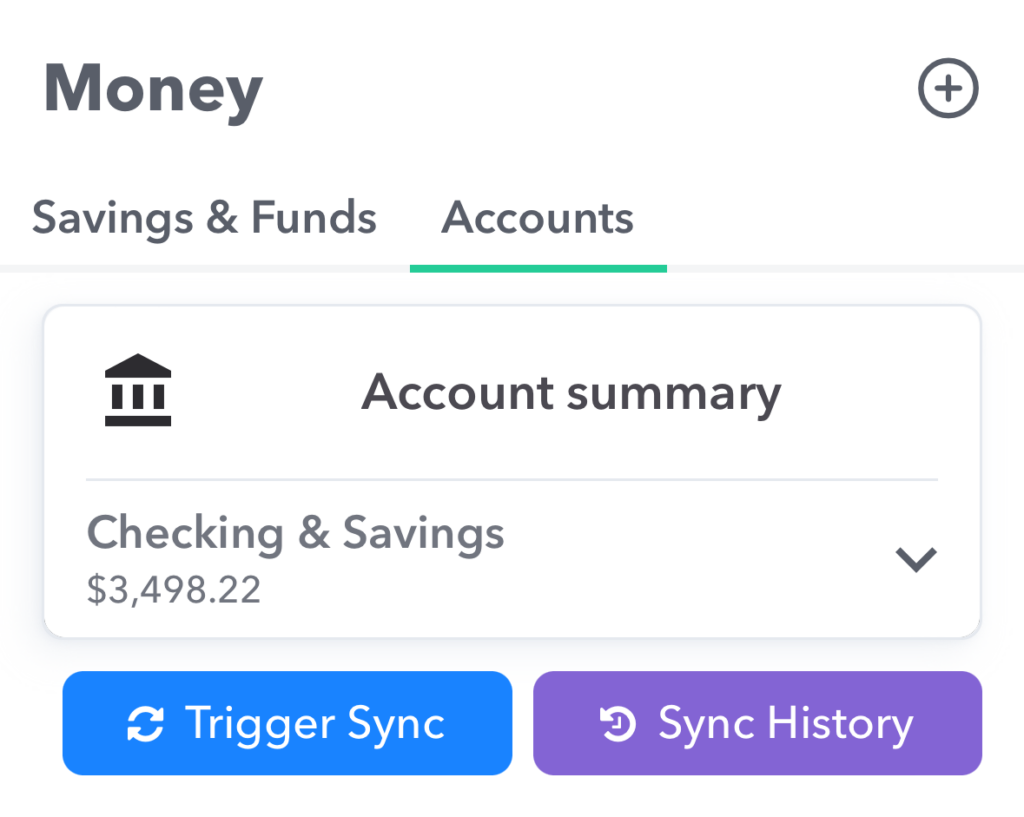
The On Demand Sync page lists all your connected institutions with the time it was last synced.
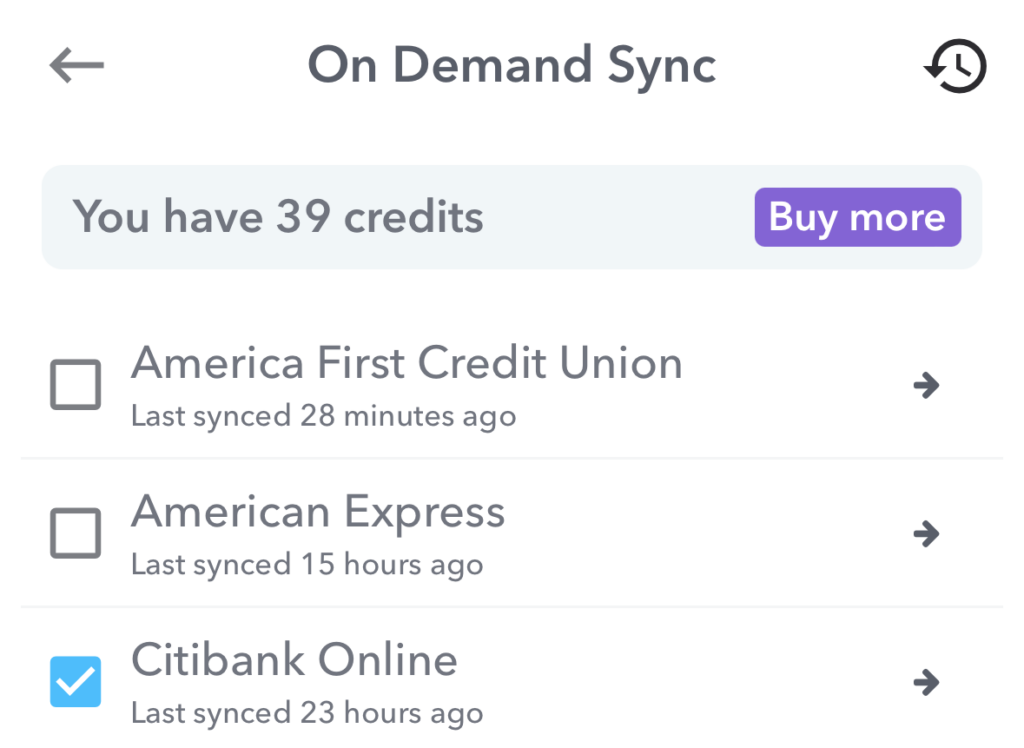
Select the institutions you’d like to sync and press “Sync”. You will see the institution begin the syncing process. Once the sync finishes you’ll see the status of each institution sync and your transactions will be available for review as usual.
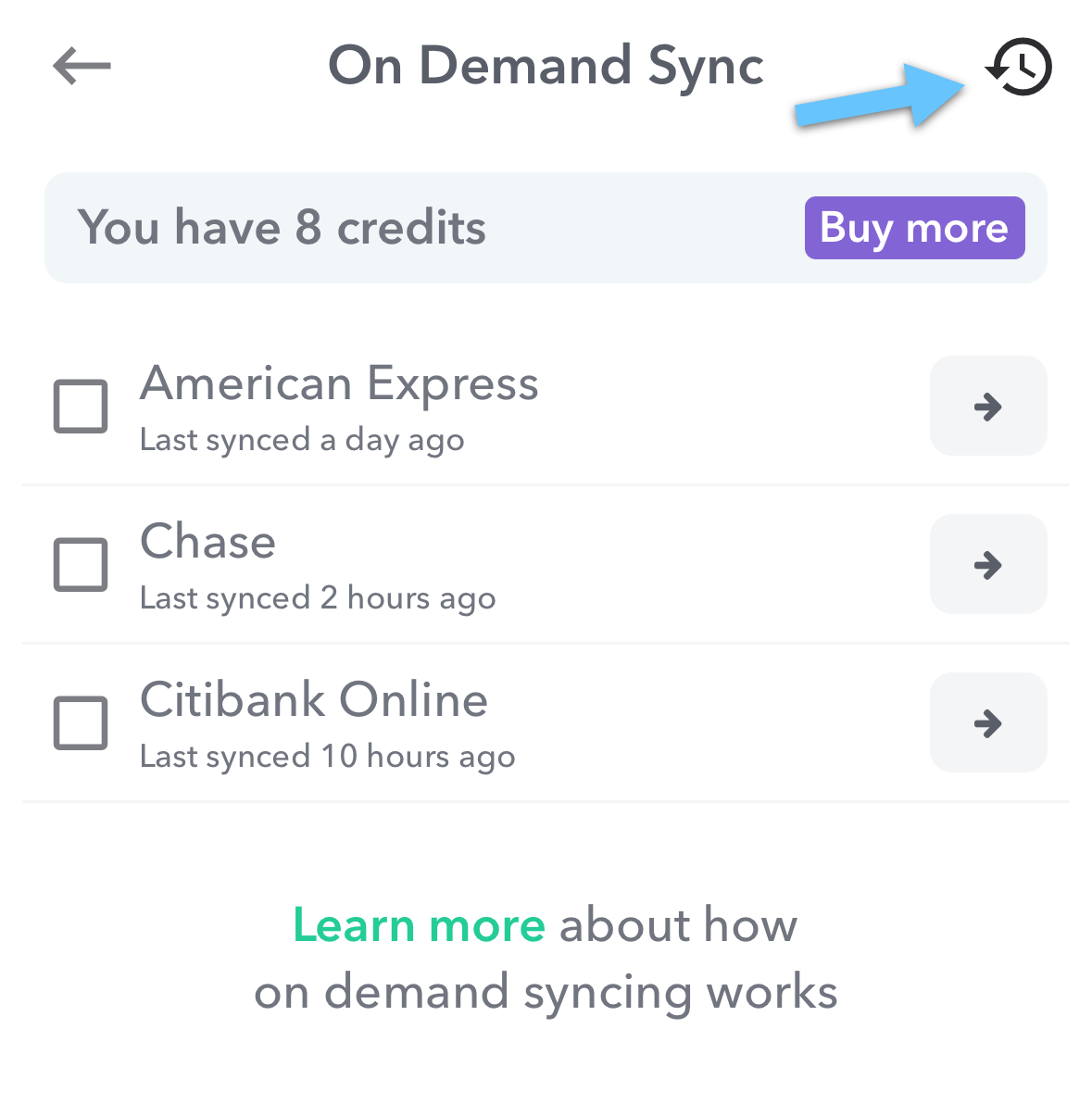
You can click the arrow next to the institution name to see it’s sync history or you can click the clock icon at the top right to see sync history for all institutions.
Sync Credits
On demand sync is an add-on feature and requires having sync credits. You can acquire sync credits in several ways.
- You can purchase a pack of 5 credits for 99¢ and a pack of 40 for $4.99.
- If your bank has not synced in the last 24 hours, we will provide a free sync credit for that bank.
- You can earn sync credits by submitting bug reports.
Additionally, when you first sign up for Weekly PRO, we will start you with 5 free credits so you can try it out.
Each time you sync an institution uses one sync credit. If your institution fails to sync, you will not be charged a credit.
In offering on demand syncing we want to provide more visibility into the syncing process (via the sync history view) and also give the option to trigger a sync on demand when needed. We are charged for every on demand sync we run (per institution) so we have to be strategic about how we make that available.
We feel like a sync frequency of at least every 24 hours is a minimum level of service we should provide even if user’s banks don’t sync that frequently on demand. So we do not charge sync credits when users run an on demand sync for an institution that hasn’t synced for 24 hours. You can test that out by running an on demand sync for one of your institutions that hasn’t sync for the last 24 hours.
Supported Banks
On demand syncing works for most financial institutions and there is no extra setup required. There are a small number of institutions (like Capital One) that do not support syncing on demand – in this case your bank will be listed but grayed out.
For more info, see our FAQ about sync history.
Sync History
Each time we connect to your bank or credit card to try to download new transactions, we call this a “sync”.
Your sync history allows you to see the times your Weekly account has connected to your banks and downloaded transactions. This can be useful if you want to know if all your purchases have been downloaded into the app or if you just want to check on the health of your bank connection.
Sync History List
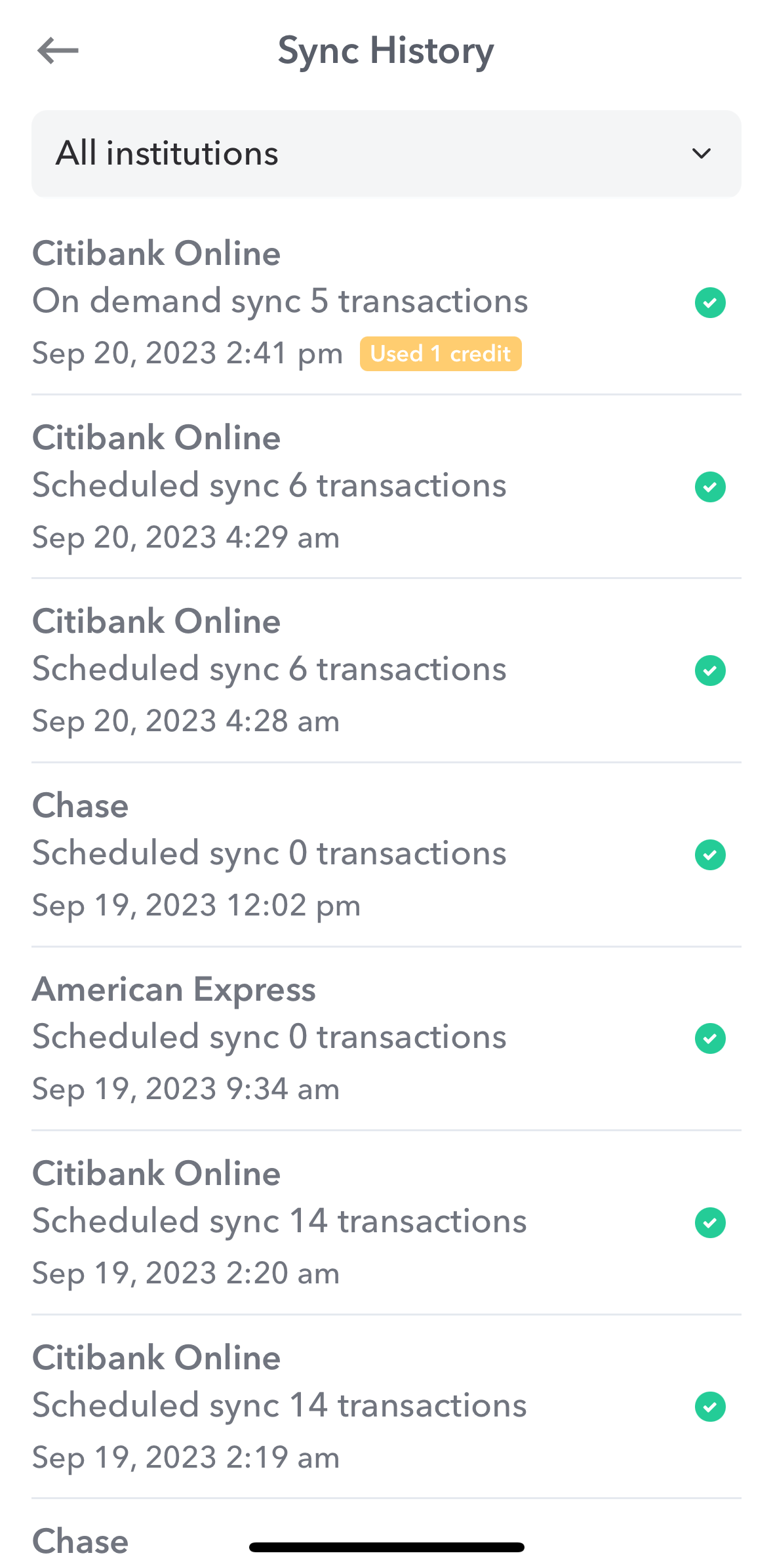
Sync history page shows a running list of the downloads that have happened between Weekly and your financial institution. Each entry will show the type of sync it was – “Scheduled” or “On Demand” – the number transactions that were downloaded and the time of the sync. There is also a check mark or an “X” to show if the sync was successful or not.
Sync Types
There are two types of syncs – “Scheduled” and “On demand”. Weekly automatically downloads your transactions based on what your bank allows by default. These are called “Scheduled” syncs. Each institution is different based on their policies.
But Weekly also allows you to sync when it’s most convenient to you. These syncs that are triggered by you are called “On Demand” sync. On demand syncing requires a sync credit which can be acquired a few different ways. (See our page on “On Demand Syncing” for details.)
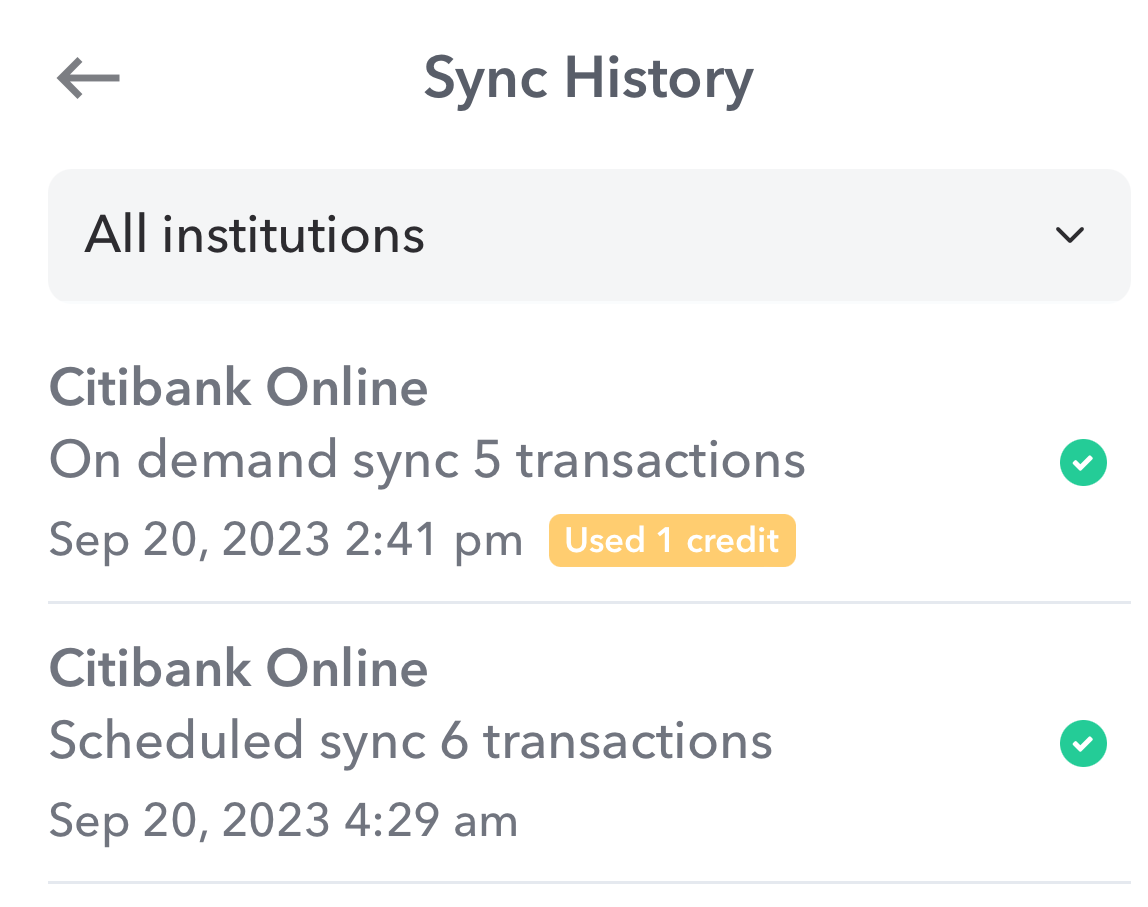
If you trigger an on demand sync that uses a credit, you’ll see a “Used 1 credit” box on that sync history item.
How to see your Sync History
Your sync history is accessible in a couple places.
First, on the “On Demand Sync” page there is a clock icon. Tap on that icon to see the syncs from all institutions.
Second, you can go to your list of accounts. Underneath the name of the bank it will show you when the last sync occurred.
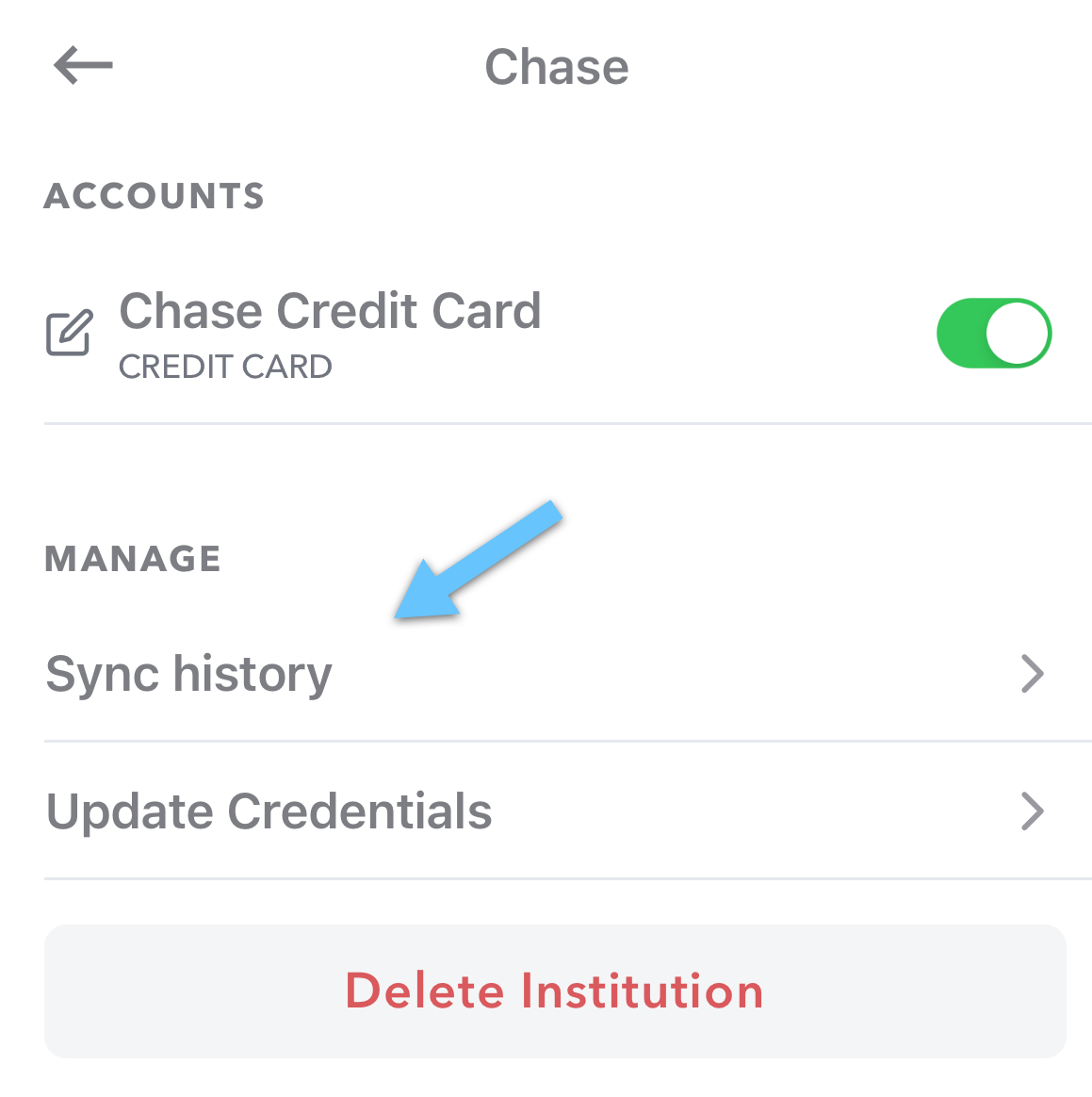
Tap on the institution and at the bottom of the screen underneath the “Manage” heading, you can see an option to see “Sync history”. Tap on that to see a list of syncs just for that institution.
Conclusion
Successful budgeting requires keeping in touch with your spending. Syncing with banks is a great way to make the inputting of transactions into Weekly easier and seeing a history of syncs can help you understand what has been downloaded into Weekly so you feel great about where you are at with your weekly spending.