
Categorizing Transactions
When reviewing Safe-to-Spend transactions, you have the option to define a category for those transactions. If you categorize your transaction, you can see the amount you have spent in those categories and unlock category spending averages so you can compare your current spending to your personal averages. In this knowledgebase article, we will cover the process of assigning transactions to different categories.
Two ways to assign categories
You assign categories to Safe-to-Spend categories when you review transaction. You can review your transaction either individually one-by-one or in bulk in a transaction list view.
- Individual Transaction Review
- Transaction Review List
We will walk you through both ways to assign categorize to Safe-to-Spend transactions.
Individual Transaction Review
When you are reviewing your transactions one-by-one, you can select a category for your Safe-to-Spend transactions.
When reviewing the individual transaction, tap Safe-to-Spend then a list of categories will drop down to choose from. You can then select a category and tap “Confirm”.
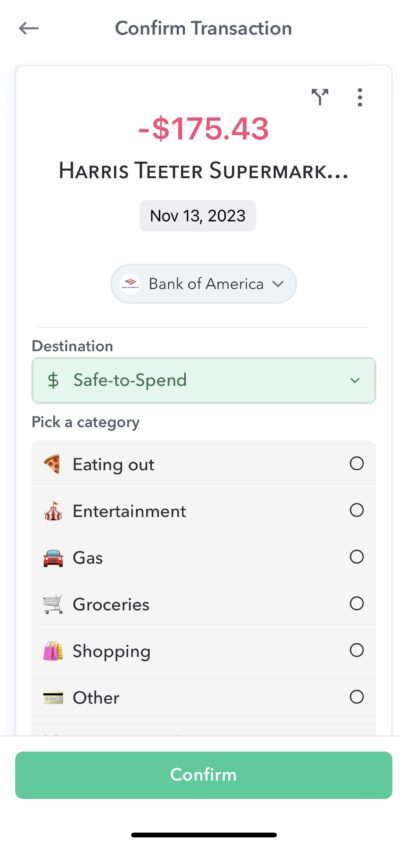
You may also see a “Suggested” category underneath the transaction. These suggestions are made based on a set of rules including the bank provided transaction category and your own suggestion rules that you setup when approving transactions.
Weekly’s suggestions show up as a colored pill underneath the transaction card.
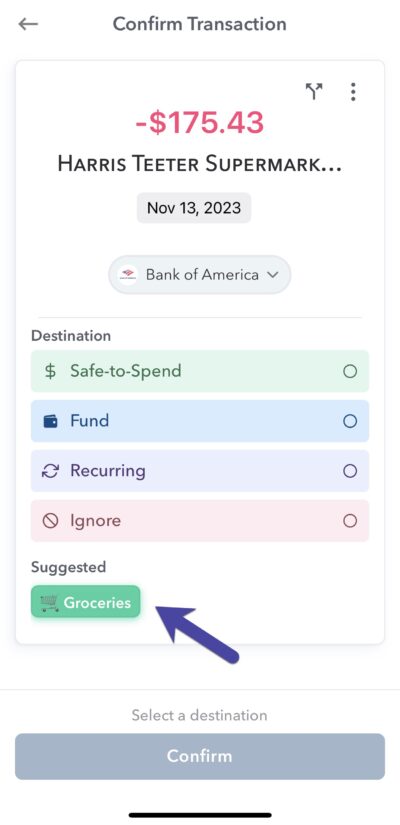
If you tap on the the suggestion, the transaction type of “Safe-to-Spend” and the category (in this case “Groceries”) will be selected.
Safe-to-Spend category suggestions will be in a green rectangle, while suggestion for Recurring budget items will be in purple, Fund suggestions will be in blue and “Ignore” suggestion will be in red. See more about our Suggestion Rules.
Always Suggest
When approving a transaction that does not have any suggestion rules associated with it, you wil see the option to “Always Suggest” the category for the vendor. This is how personal suggestion rules are set.
If you choose to “Always suggest” then the next time a transaction comes through from that vendor Weekly will have a green rectangle that is tappable that will file the transaction as a Safe-to-Spend transaction and fill in the category without having to choose it again.
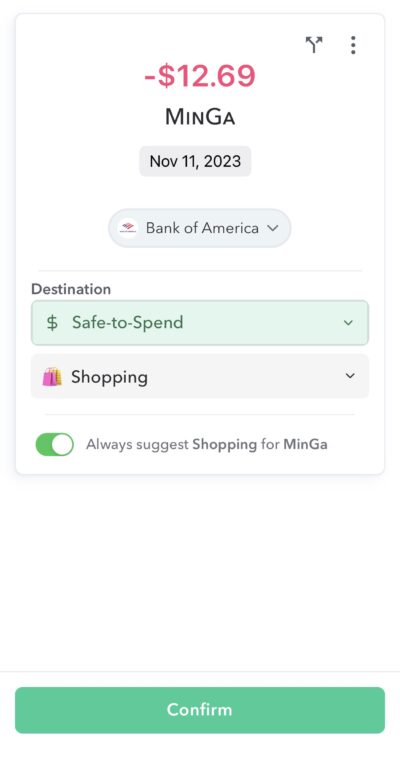
As Weekly learns all you “Always suggest” rules, it will make reviewing transactions easier and easier, especially on the transaction bulk review screen (see below).
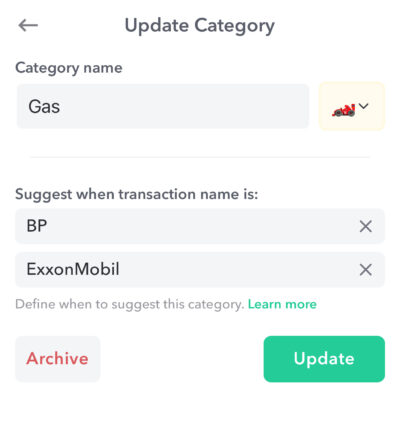
Any vendor to category suggestions you have setup are visible on the Manage Category page where you can remove the rules you have setup. In the screenshot below you can see the transaction rules that have been setup under “W/hen transaction name is” section of Managing a category.
Transaction Review List
You also assign categories to Safe-to-Spend categories by tapping icons on the transaction review list screen.
To get to the bulk review screen, tap on the list icon on the top right of a individual transaction review page.
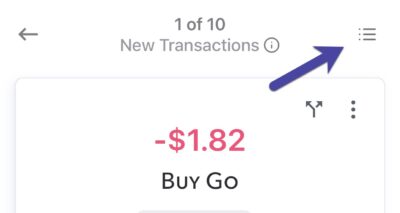
it also allows you to quickly map transaction to Recurring budget items and Funds.
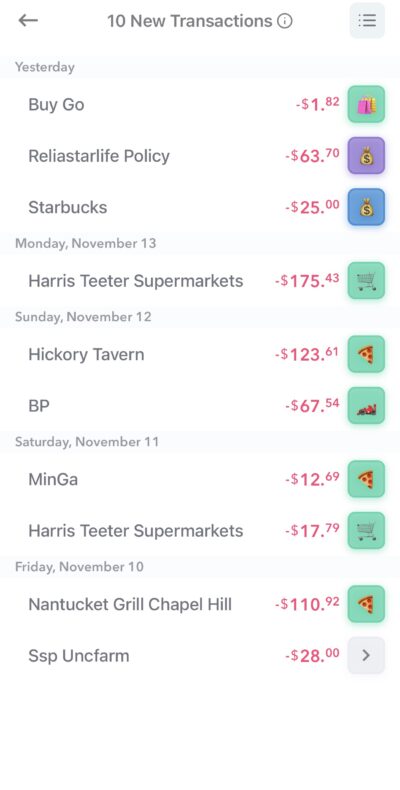
The transaction review list screen shows you all the unreviewed transaction and quickly allows you to tap the square icon associated with the transaction if you want to accept Weekly’s suggestions.
The color of the square icon indicates the suggested Destination.
- Green indicates Safe-to-Spend
- Blue indicates Fund
- Purple indicates Recurring
- Red indicates Ignore

The emoji in the square will indicate the category, budget item or fund that Weekly is suggesting the transaction be mapped to.

In the square above the green indicates that Weekly suggest mapping the the transaction to Safe-to-Spend. The pizza emoji indicates that Weekly suggest mapping the transaction to the “Eating Out” category. The emoji’s for categories are editable on the Manage Category page.
Now if you like Weekly’s suggestion you simply tap the square and it will turn into a checkmark.
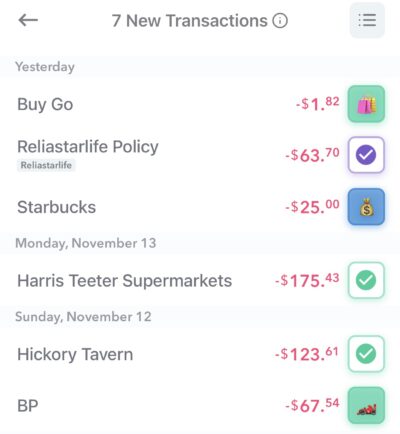
If you don’t want to take Weekly’s suggestion, you can tap the name of the item itself which will bring you to the individual transaction review screen where you can define exactly how you want to map the transaction.
Finally, if you see a gray arrow, it means Weekly doesn’t have a suggestion for you. Simple tap that arrow and go to the individual transaction review and review the transaction and you can also setup new “Always suggest” rules from there.
Managing Your Categories
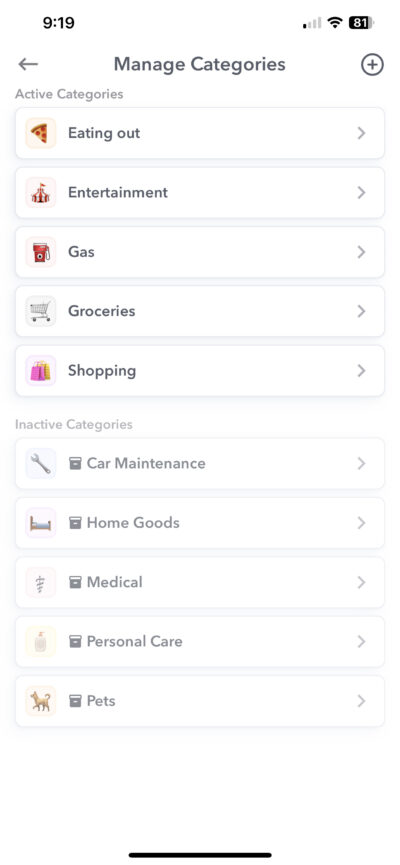
To see the categories you have in Weekly you can go to “Settings” and tap “Manage Categories”. From here if you are a Weekly PRO user you can add and edit your categories.
Conclusion
Categorizing your Safe-to-Spend transaction will allow you to see how much you are spending in different categories as well as keep track of Weekly averages in different categories. You define what category your transactions below to during the transaction review process either individually or in the bulk review screen. Weekly also offers rules that allow you map vendors to categories so the mapping process can be as easy (and fun!) as possible.
Managing and Adding Categories
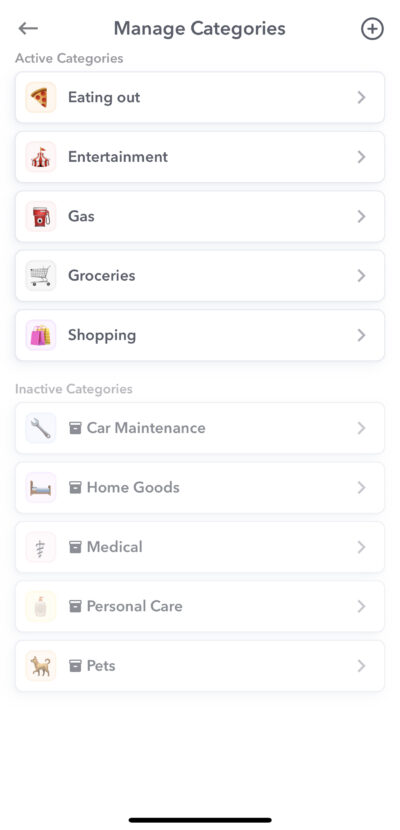
You can edit and add categories by going to “Settings > Manage Categories”
Each user starts off with the following five active categories:
- Eating out
- Entertainment
- Gas
- Groceries
- Shopping
You can tap into any of these default categories and adjust the emojis or the category name. If you have already been using categories and have set up suggestion rules during the transaction approval process, you can tap the category and see the suggestion rules you have setup.
Also for Weekly PRO users, there are also the following inactive categories
- Car Maintenance
- Home Goods
- Medical
- Personal Care
- Pets
The preset inactive categories are pre-created for you so that you have a quick way of turning them on if you want them. The inactive categories also have bank categories mapped to them so if you connect your bank and credit cards this will allow for quick matching.
Creating A New Category
You can also create your own categories by tapping the (+) button at the top right.
Here you can give your category a name and choose an icon.
Below the category suggestion rules. These suggestion rules will be created during the process of reviewing and approving transactions. For example, during the transaction review process you can choose to always suggest “Starbucks” for your Coffee category. But if you are creating a new category these suggestion rules will be blank.
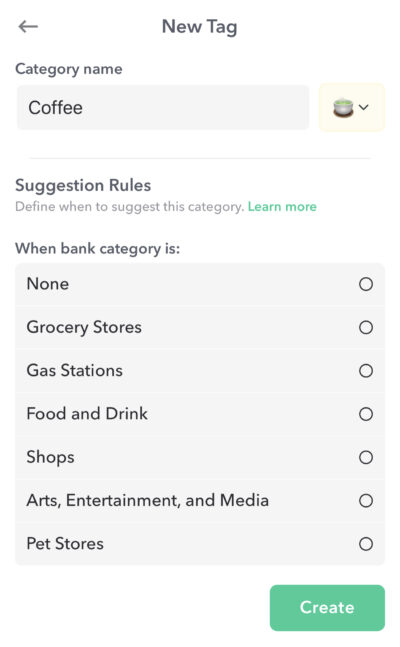
Underneath the “Suggestion Rules” you will see a drop down that allows you to choose a bank category to automatically map to this category. This is an optional selection but if chosen, when we download a transaction from the bank we will look for that transaction bank category and map it to your category.
Editing A Category
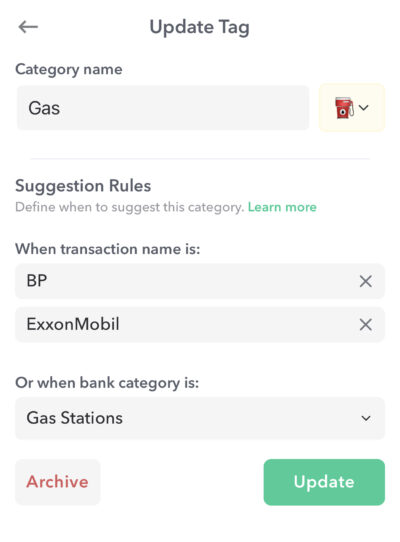
You can tap into any of the categories in your account and edit it. You can change the category name and also the emoji associated with the category. If you have set Suggestion Rules for the category then you can see those suggestion rules here. If you no longer want to apply that suggestion rule, you can delete it here.
In the screenshot below, “BP” and “ExxonMobil” are both being mapped to the category “Gas”. These suggestion rules were set during the transaction review process.
Conclusion
Creating and editing categories let’s users setup Weekly in a way that syncs with their life, allowing you to track purchases in categories that reflect their priorities and purchase habits. Weekly makes the categorization process fun by allow you to setup your own names and emojis and also giving you ways to set suggestion rules that make approving transactions easy.
Transaction Suggestions
Suggestion rules drive how Weekly recommends where to categorize transactions when reviewing them. This article describes how the logic behind how the suggestion rules work.
How Weekly’s Suggestions show up
All transactions that come into Weekly confirmed to one of four destinations.
- Safe-to-Spend – A transaction whose amount should be taken from the week’s Safe-to-Spend.
- Recurring – A transaction that is for a recurring expense that has already been setup as a budget item.
- Fund – A transaction whose amount should be taken from a Fund.
- Ignore – A transaction that should be ignored.
To speed up the transaction review process, Weekly will suggest how to categorize these transactions.
Weekly’s suggestions show up in two places – the individual transaction review and the bulk transaction review.
Individual Transaction Review
When reviewing a transaction individually the suggestions appear underneath the destination options. Tapping on the suggestion will chose the destination and the associated category, recurring item, or fund.
Transaction Review List Screen
The primary suggestion rule for a transaction will be listed on the Bulk Transaction Review screen.
The color will indicate the destination (Safe-to-Spend, recurring, fund, or ignore) and the icon represents the category, recurring item, or fund. Here’s an example of the “Eating Out” Safe-to-Spend category.
How Weekly makes its suggestions
Weekly uses several rules to determine what to recommend. They’re outlines in priority order below.
- Manual transaction match – If you have manually entered a transaction whose amount and date match a bank transaction, this will be our top suggestion.
- User-defined Vendor Rules – If you’ve defined a rule to always match a vendor to a specific destination, that will be used next.
- Recurring item matches – Weekly will look for transactions that seem to match recurring items based on the vendor, transaction date, and amount.
- Bank suggested category to Weekly category based on customer mapping on the Category screen.
- Ignore Transfers and Credit Card Payments – Weekly will recommend ignoring transfers and credit card payments if no other rule applies.
Let’s go into a little more detail on each priority step.
Manual transactions
To keep Weekly up-to-date, you may have put in a manual transaction to keep your Safe-to-Spend accurate while you are waiting for transactions to sync. If you have done this. based on the transaction amount, Weekly will first suggest mapping a download transaction to a manual transaction of the same value.
User-defined vendor
When approving transaction, Weekly will show you a “Always Suggest” dialog for that vendor. So for example, if a charge for your power bill always comes from a vendor called “Dominion Energy” you can choose to “Always suggest” that the transactions from “Dominion Energy” be mapped to your “Power” recurring budget item. Similarly, you can choose to “Always suggest” certain vendors for Safe-to-Spend categories or specific Funds.
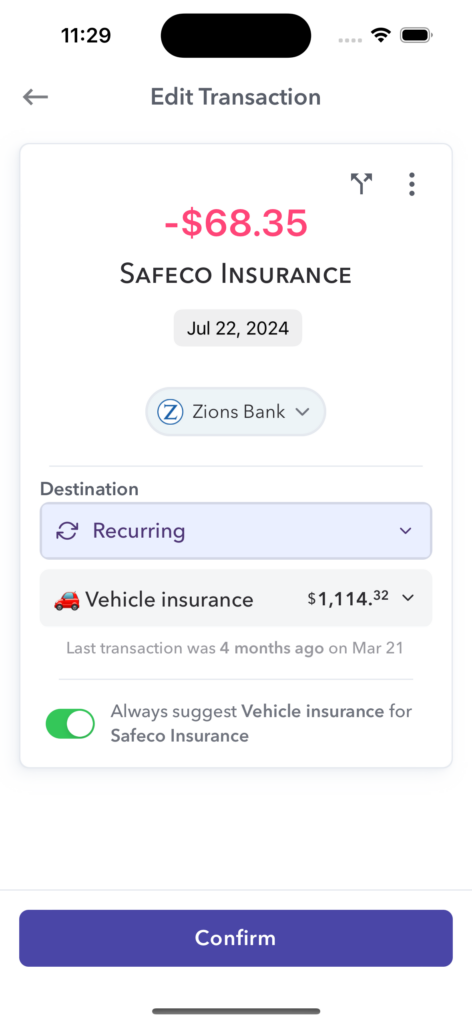
If you have any of these “Always Suggest” rules set up for a particular vendor, then when a transaction comes through, these rules are given second priority after manual transactions.
Pricing and Vendor matching to Recurring charge
If a charge from a vendor comes through and it matches the amount, the vendor name, and/or the next transaction date for a recurring expense, Weekly will recommend this mapping even if a user defined rule has not been created.
Bank category
When transactions are downloaded from the bank, the bank has already defined a category for that transaction. We have mapped these categories to our default active and inactive categories. These suggestion rules are very helpful when first starting Weekly or when you purchase from vendors that Weekly has not seen before.
Transfers and credit card payments are suggested to Ignore (if no other rule applies)
Since there is no actual spending happening, transfers and credit card payments are default suggested to “Ignore”.
Two suggestions
Based on the rules above, Weekly may have two suggestions. In this case the highest priority suggestion will be listed on the left and the next will be listed on the right.
Conclusion
Based on these priority rules, Weekly will decide what to suggest in the individual and bulk transaction review screens. These suggestions make the transaction review process quick (and fun!) keeping you in touch with where you are at with your spending on a weekly basis.
Spending by Category
You can see your Safe-to-Spend spending by category on the main dashboard page by tapping the arrow on the main Safe-to-Spend card.
Under that view you will see
- Category
- Amount spent in that category during the current week
- Average spend in that category over past weeks
The average is calculated by looking at the categorized transactions in past weeks.
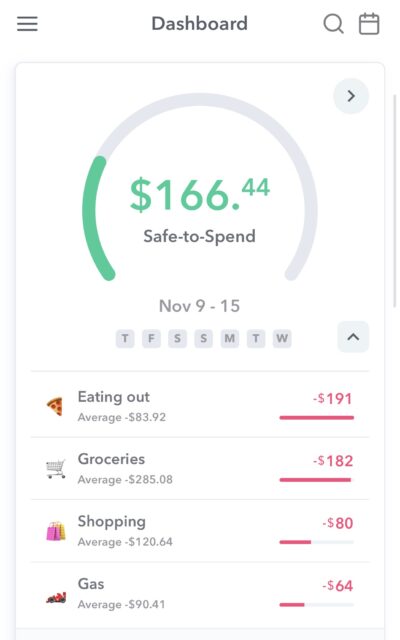
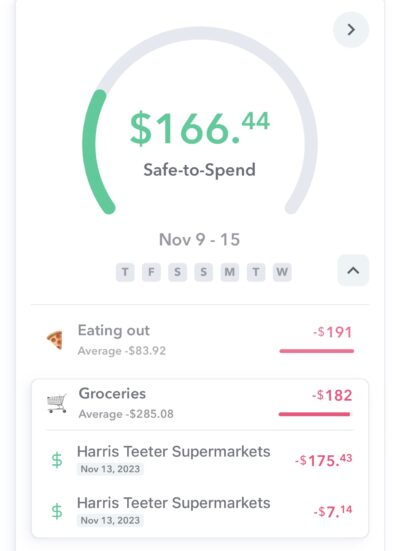
You can tap on any category and see the transactions that are mapped to that category. You can also tap on any transaction to categorize or re-categorize as necessary.
Managing Suggestion Rules
To turbo-charge the review of incoming transactions, you may choose to “Always Suggest” transactions from certain vendors be mapped to a particular Safe-to-Spend category, Recurring Expenses or even as Fund transactions.
This help article shows you were can review the Vendor associated rules that you have setup and remove them if you no longer want them.
Suggestion Rules Screen
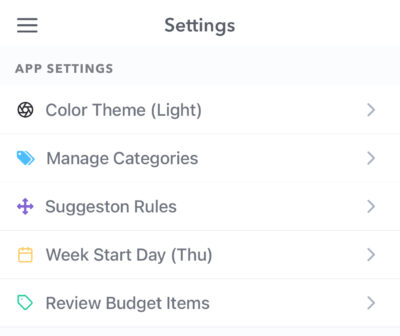
All your Vendor suggestion rules are listed under in “Suggestion Rules” in “Settings” (to get to “Settings” tap top left menu bar)
The Manage Suggestion Rules screen shows all the suggestions you have created.
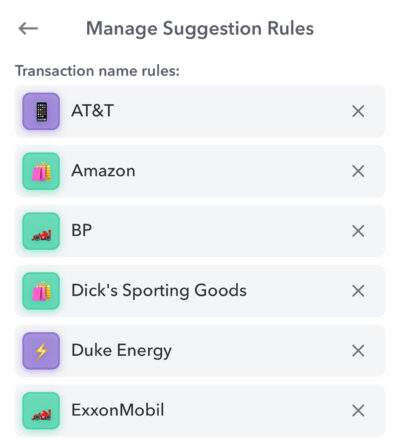
The color of the square icon indicates the suggested Destination.
- Green indicates Safe-to-Spend
- Blue indicates Fund
- Purple indicates Recurring
- Red indicates Ignore
The emoji in the square will indicate the category, budget item or fund that Weekly is suggesting the transaction be mapped to.
So for example in the screenshot above the shopping bags next to Amazon indicate this Weekly user has set “Shopping” to be auto-suggested for all transactions from Amazon. Now you can always change the category when reviewing the transaction but if this rule is on “Shopping” is the one that will be suggested so that you can quickly tap and review transactions as they come in.

To further understand what the rule is setup, you can tap the rule and it will show you in text what the rules is setup to do. See below.
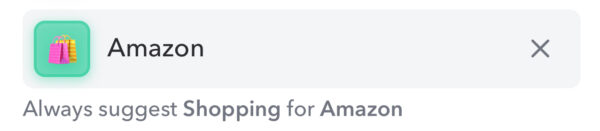
If you no longer what this suggestion rule, you can delete the rule by tapping the “x”.
If you want to change the rule associated with a transaction you can do that one of two ways.
- You can delete the current rules and suggest a new one when you review the next transaction from that vendor.
- You can aslo “edit” a rule without deleting it by overriding it. On the Individual Transaction Review screen, just select “Always Suggest” after picking a different destination for that vendor and the rule will be updated.
In either case, you edit or set new rules when a transaction from the vendor comes in again. It is not possible to edit a rule in the “Manage Suggestion Rules” page.
Category Editing Screen
When editing a category, you can also delete any rules you setup for that category mapping. In the screenshot below, the rules are listed below the “Suggest when transaction name is:” and you can delete them by tapping “x”.
Conclusion
The transaction review process is significantly enhanced by your Vendor suggestions. You can see and delete the suggestions you have setup in the “Suggestion Rules” screen and, for categories, under each individual Category detail page.