
The Weekly Cycle
Weekly is all about managing your spending on a weekly basis. At the end of a week, you get a chance to review how your week went and then decide how you want to handle rollover into the next week. Here is a guide to what happens at the end of your week.
Review Last Week
When a week ends, you will be shown a banner on the Dashboard that it’s time to start on a new week.
When you tap on this banner you will be brought to your Week in Review.
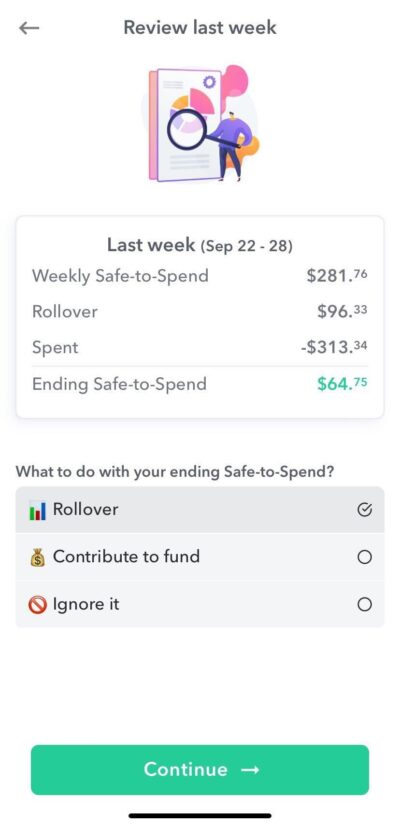
For the week that just ended you will see a breakdown of how you Ending Safe-to-Spend is calculated.
- Weekly Safe-to-Spend – The amount that was first added to you Safe-to-Spend and it equals your Weekly Spending Limit.
- Rollover – If you had rollover when you began your previous week, it will be shown here.
- Spent – The amount you spent in the last week.
- Ending Safe-to-Spend – The balance that is left in your Safe-to-Spend. This will be the rollover amount for the next week.
Choose what to do with your Safe-to-Spend balance
Now that you know how your end of week Safe-to-Spend balance was calculated you can choose what to do with it.
- Rollover – If you choose this option, your next week’s Safe-to-Spend balance will be increased or decreased by the end of week Safe-to-Spend balance.
- Contribute to Fund – If you are trying to build up a fund to make a big purchase, saving your end of week Safe-to-Spend balance is a great way to add money to that savings goal.
- Ignore It – If you ignore it, that money just sits in your bank as extra money to use “in real life” but is not mapped to any account in Weekly.
Then tap “Continue” to move to the next screen where you “Review Next Week”.
Review Next Week
The next screen is where you review the Safe-to-Spend balance.
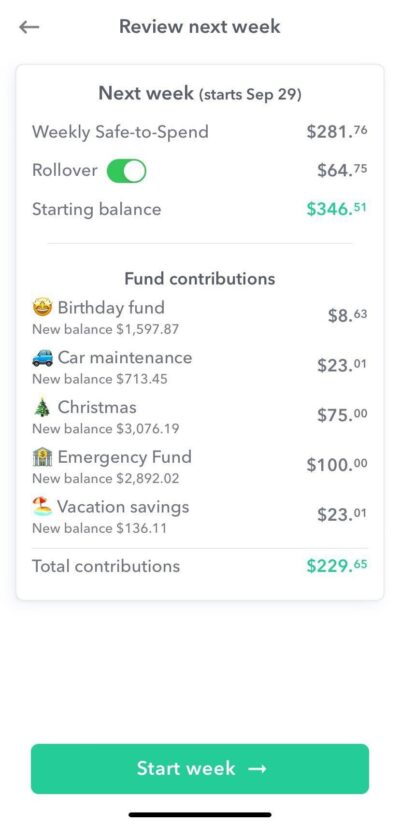
If you chose to Rollover your ending Safe-to-Spend balance you will see it the top of the screen where, you can turn it off and on if you chose.
Then you will see your starting balance which is what will be in your Safe-to-Spend.
Underneath your Starting Balance is a list of Funds contributions. At the beginning of the week, in addition to the weekly spending limit being added to your Safe-to-Spend, all the funds you setup also get new contributions. The Fund Contributions are their to remind you of the contributions and allow you to see their current balances.
Tap on “Start week” to start your new week and be taken back to the Dashboard.
Congratulations on the start of a new week!
What day should I start my week on?
Any day you like! Since Weekly uses averages you can start your week on the day that works best for you. Here are a few things you might think about when choosing your start day:
- Since your income and expenses are averaged, your start day doesn’t have anything to do with your actual payday.
- Consider your spending habits: Reflect on your typical spending patterns during the week. For instance, starting on a Friday might give you more funds for weekend activities, while Monday through Thursday can focus on regular expenses.
The great thing about Weekly is its flexibility. You can experiment with different start days until you find the perfect fit.
Change start day
You can change your week start day anytime. Here’s how:
- Tap the navigation button on the top left to access the menu.
- Select Settings.
- Look for the “Week Start Date” setting and choose your preferred day.
- The app will adjust your current week’s spending limit to accommodate the change.
Happy budgeting, and have a fantastic week!
Start Day of The Week
The idea of behind Weekly is to budget your money on a weekly basis and not focus on when cash comes in or out of your bank account.
The first step to getting started is to pick the day of the week your “money week” will start on. This is the day that your weekly spending limit will be added to your Safe-to-Spend to give you a new refresh on your spending. So for example due to various personal spending routines such as grocery shopping or how your work week starts and ends, a different day of the week may work better for you. So for example, Wednesdays , Sundays or Saturdays may be better for you personally to start getting with your spending week. (See your FAQ – “What day should I start my week on?“)
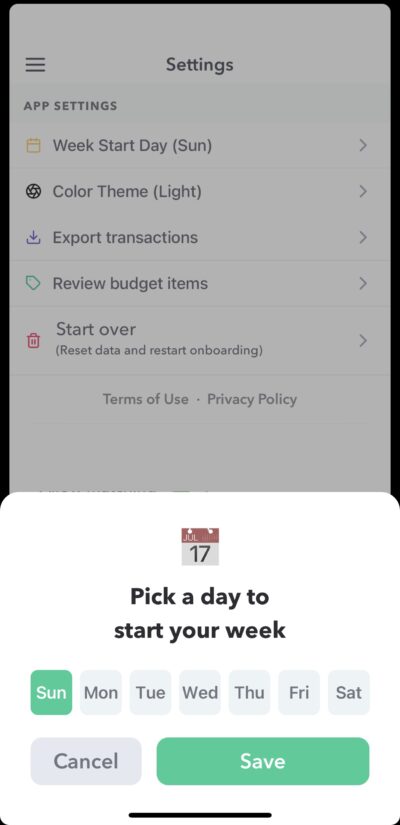
You can choose a day that matches your personal spending rhythms when you first sign up with Weekly. But if you ever need to change the day of the week you start your money week on, you can under “Settings”. Go to the top left menu bar and tap Settings and then tap “Week Start Day” and choose your new start day.
If you are in the middle of your week already, Weekly will automatically make all the needed Safe-to-Spend adjustments for you.
How to Fill in Skipped Weeks in Weekly
What are skipped weeks?
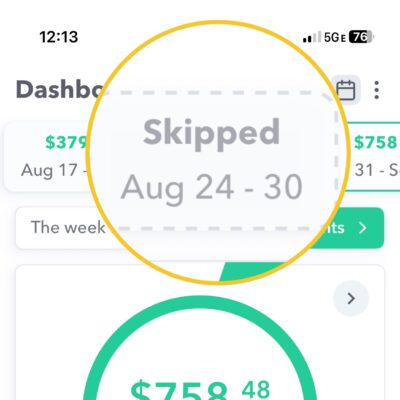
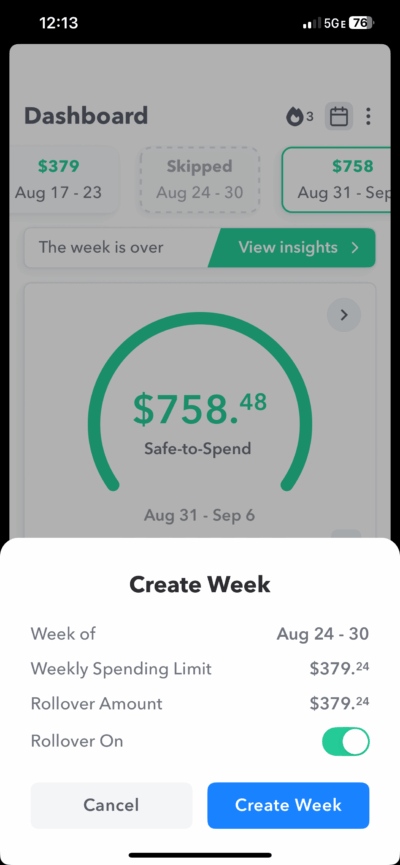
A “skipped week” happens when you don’t create a budget week in Weekly. On your dashboard, it will appear as Skipped in your week timeline. Skipped weeks can leave gaps in your history and affect your reports.
Why fill them in?
- Accurate insights: Reports and Safe-to-Spend work best with complete history.
- Consistency: Each week builds on the last, so filling gaps keeps your rollover amounts aligned.
- Flexibility: New users can also backfill past weeks to start with history already in place.
How to fill in a skipped week
- Go to your Dashboard.
- Tap the calendar on the top right to show previous weeks.
- Look for any weeks marked Skipped.
- Tap the skipped week.
- Review the details:
- Weekly Spending Limit (this matches your usual budget setup).
- Rollover Amount (any funds that would carry forward).
- Rollover On/Off toggle (choose whether to roll this week’s leftover into the next).
- Tap Create Week to confirm.
Once created, you can add spending transactions just like any other week.
Filling in past weeks (for new users)
If you’re just starting with Weekly, you can go back and create weeks before your signup date. This gives you a few weeks of history right away, so you can start with insights instead of an empty dashboard.
- Simply scroll back in your timeline and tap on any blank week.
- Follow the same Create Week steps as above.
Tips
- If you truly didn’t spend that week (e.g. you were traveling and covered by other funds), you can still create the week and leave it at $0.
- You can always adjust categories and transactions later.