
Welcome to Weekly
I’m Dan. A few years ago, I was trying to figure out budgeting with my wife. Like a lot of couples, we tried different apps, spreadsheets, and the classic ignoring it all together 🙈 🙈 🙈 I have a background in accounting so I even built a few reports of my own to try and make sense of everything. At the end of each month, we would sit down and review our spending. It was painful. We started calling it doomsday. Sound familiar?
At the end of another dismal doomsday, my wife said to me, “What do you expect me to do with all this information?” That’s when I realized I was approaching budgeting all wrong.
Over the next few years, I built an app called Weekly that scrapped the old system of monthly budgeting with categories and complex reports. Instead, I focused on building features that support how humans naturally work. With lots of trial and error, I discovered three things that help make budgets work.
1. Spend a week at a time
The first thing Weekly helps you do is to find out how much you can spend every week. It’s a fairly simple calculation but the results can be surprising. When you know exactly what you can spend every week and you track your spending against that number your money becomes much more real.
2. Use one number to track spending
Many budgeting apps encourage you to guess how much you’ll spend in a dozen or more categories. This adds unnecessary complexity to an already challenging problem. Weekly tracks all your day-to-day spending in a single number, your Safe-to-Spend.
3. Eliminate distractions
Too much extra information in a budgeting app can be overwhelming. Weekly has a beautiful UI and keeps important information at the forefront and eliminates everything that isn’t helping you stick to a budget.
Now over 200,000 people have downloaded Weekly. Weekly connects to over 10,000+ banking institutions and people have input almost 5 Million transactions. We’ve also implemented all sorts of useful features like tracking bill dates, managing cash flow, and tracking spending with trend reports.
Our mission is to help people maximize happiness on a given income by bringing peace to their financial decisions. But at our core, we are a simple tool based on a new idea – budgeting tools should be made to match how humans behave.
Thanks for taking the time to try out Weekly. We hope it’s the most beautiful and useful budgeting tool you’ve ever used. If you have any feedback or thoughts I’d certainly love to hear them. You can get in touch with me through the “Contact Support” option in the app or simply by emailing support@weeklybudgeting.com.
Happy budgeting!
Getting Started
The first step in getting started with Weekly is to build your budget.
When you first launch Weekly, we will go through a walk-thru of building your budget. Here’s a guide to the Onboarding process page by page.
Income
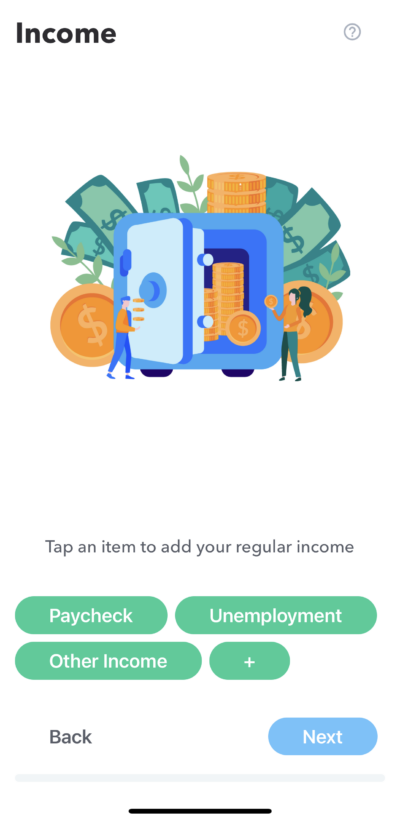
And the first step in building your weekly budget is to put in your regular income, which is a combination of how much you are paid and when you are paid it. Income is considered regular if it happens at set intervals and the amounts are exactly or nearly the same every time. If your income is lumpy or irregular, please read about “What do I do if my income is lumpy or irregular?“
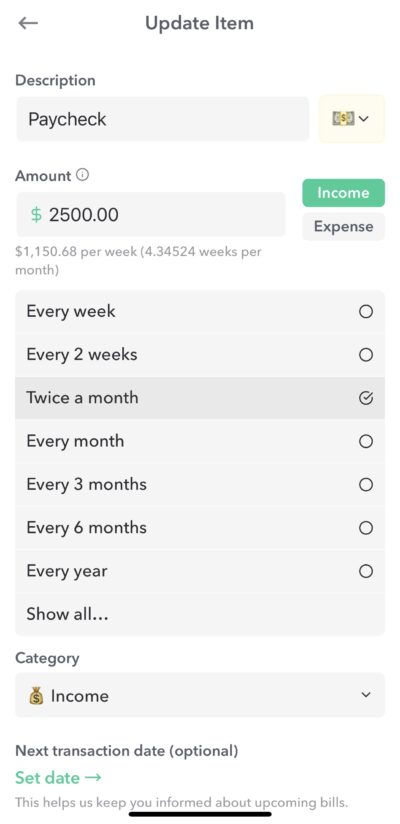
Tap on “how often” to pick your pay interval.
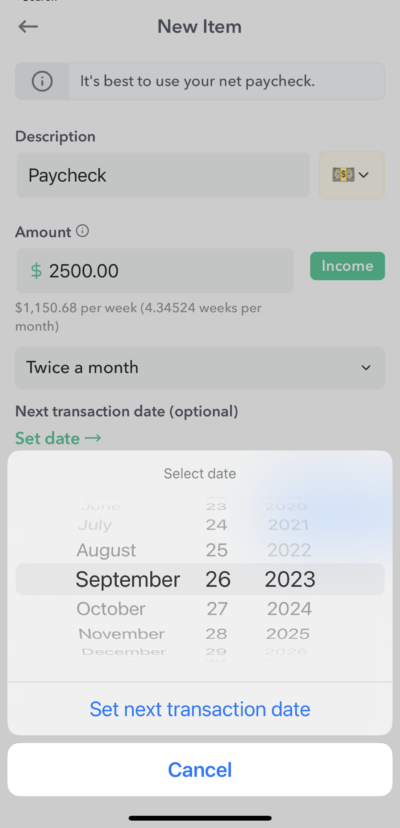
The tap “Set date” to select the next date.
After you input your regular income you will see it shows up on the Income page the amount you entered and its weekly equivalent.
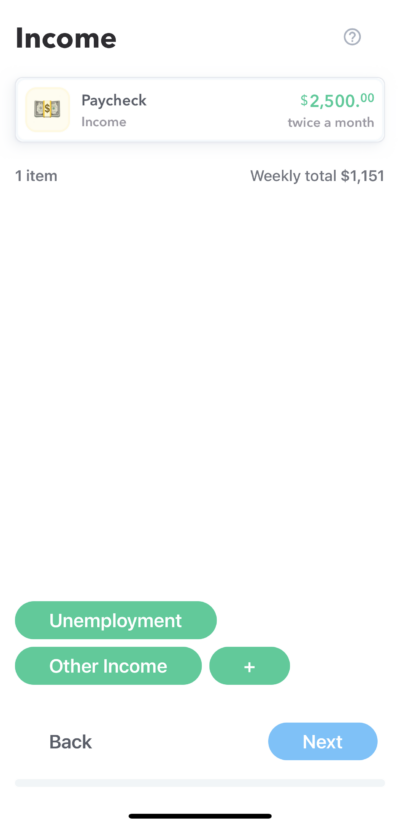
If you receive other income that is regular, you can add them by tapping on the other green pills.
Expenses
The next onboarding screens are all about putting in your committed expenses. Expenses are considered “committed” if they have set amounts and happened at pre-determined intervals. So this includes things like rent, utilities and subscriptions. These do not include things like gas and groceries, which we call “day-to-day” transactions.
Note: It can be helpful to have your latest transactions and statements available to look at as you are going through the onboarding process to help find all your recurring expenses.
The Onboarding flow will walk you through the following main categories of committed expenses.
- Housing
- Bills & Utillities
- Transportation
- Loan payments
- Subscriptions
- Health / Beauty / Fitness
- Education
- Kids
- Donations
Each of these main categories will also have different “pills” to help prompt you to remember all potential expenses. So for example, under “Bills & utilities” you will see pills for “Cell phone”, “Internet”, “Cable”, “Natural Gas” etc… If you don’t have those expenses you can ignore any pills, or if you have an recurring expenses that is not default included as a pill you can add it in by tapping “+”.
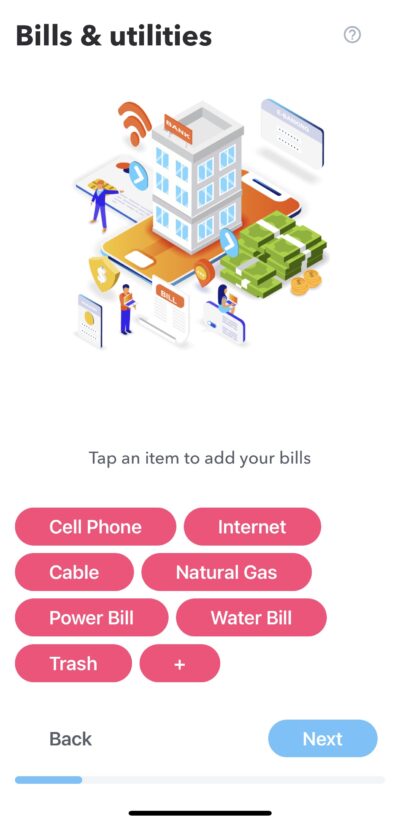
When adding in a recurring expense, you can define
- Description – What the transaction is.
- Emoji – A fun icon that will appear every now and then while using the app.
- Amount – How much the transaction is.
- Frequency – How often the bill occurs, for example, monthly, quarterly or other interval.
- Next transaction date – Setting the next transaction date is helpful when it comes to the “Upcoming Items” report in the Dashboard. If you don’t know your next transaction date, don’t worry, we will automatically set one the first time you review and add a transaction associated with that expense.
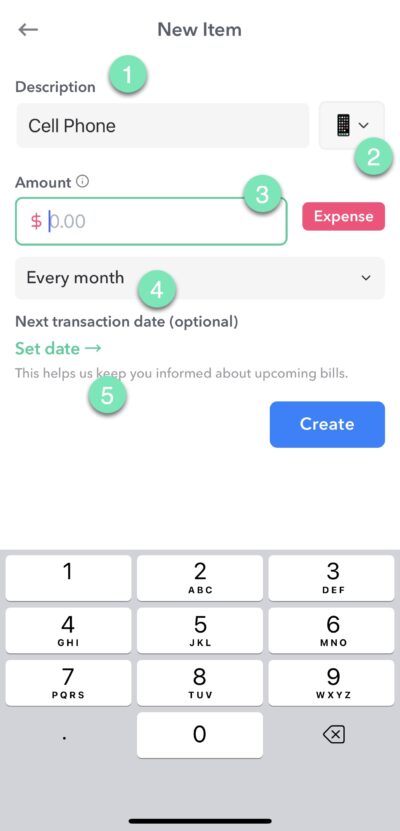
Funds
After putting in your expenses, you will have the opportunity to enter Funds. (Funds is a PRO feature.)
Funds are a way to set aside money for particular purposes. When you create a goal and set this money aside in a Fund, it is taken from your Safe-to-Spend.
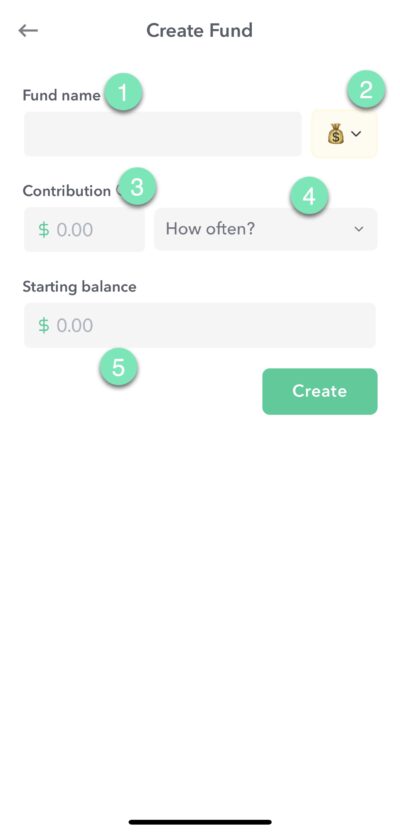
To create a fund you enter
- Fund name
- Emoji (Optional)
- The amount you want to contribute
- How often you want to contribute the amount
- Starting balance – If you have already set aside money for this fund’s purpose, enter the amount of your starting balance here.
Your Weekly Spending Limit
After you enter in all your regular income and recurring expenses and funds goals, you will be presented with your weekly spending limit.
Your weekly spending limit is the amount of money “left over” for your discretionary day-to-day spending.
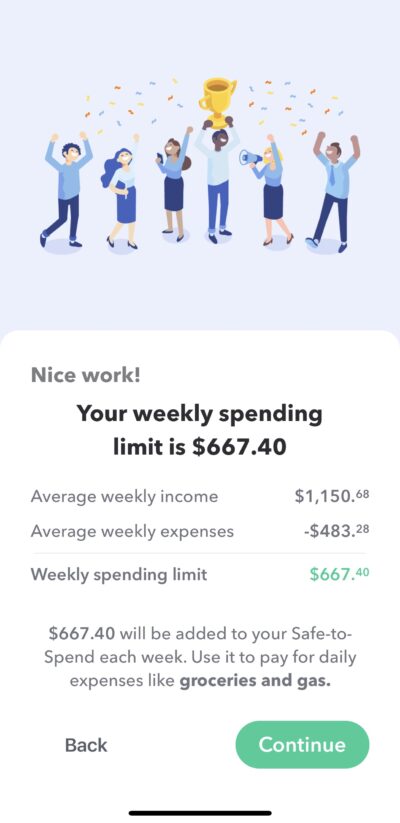
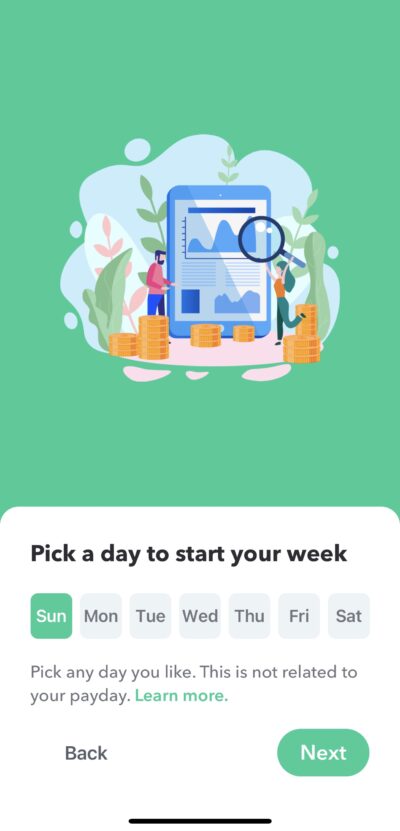
Pick a day to start your week
The next step is to pick a day to start a day to start your week. The day you pick is just the day that is best for you based on when you like to, mentally, have more money. If you say start your week on Tuesday, then on Tuesday, Weekly will add your weekly spending limit to your Safe-to-Spend on that day.
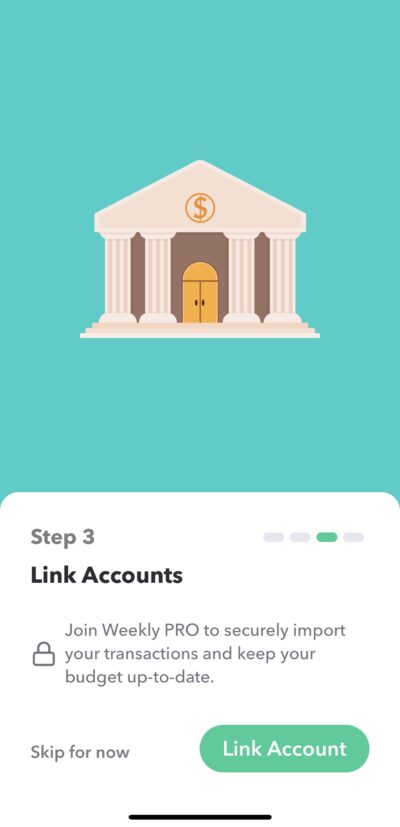
Link Accounts
Now that you know your weekly spending limit, the next step is make a plan for putting in your day-to-day transactions. You can put in your transaction in the following ways.
- Manually
- Downloaded from bank
- A combination of both – we will match your manual transactions to your bank transactions when we download them.
If you want use ease an convenience of downloading your transactions from your bank, this is step were you connect your bank. This is a Weekly PRO feature.
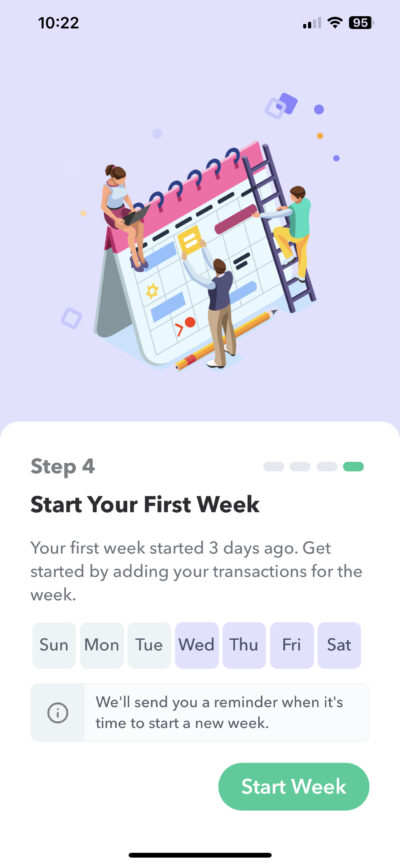
Start Your First Week
We have come to the final page onboarding! Its time to start your first week. This page shows you the days in your first week, which may have already started. Tap “Start Week” to start your first week and move onto the Dashboard.
Additional resource: Watch a complete video of Weekly being setup for the first time with a sample budget.
The Dashboard
Weekly’s dashboard is where you review new transactions and track your your day-to-day spending. The Dashboard is also configurable and allows bringing information from other screens to a central dashboard.
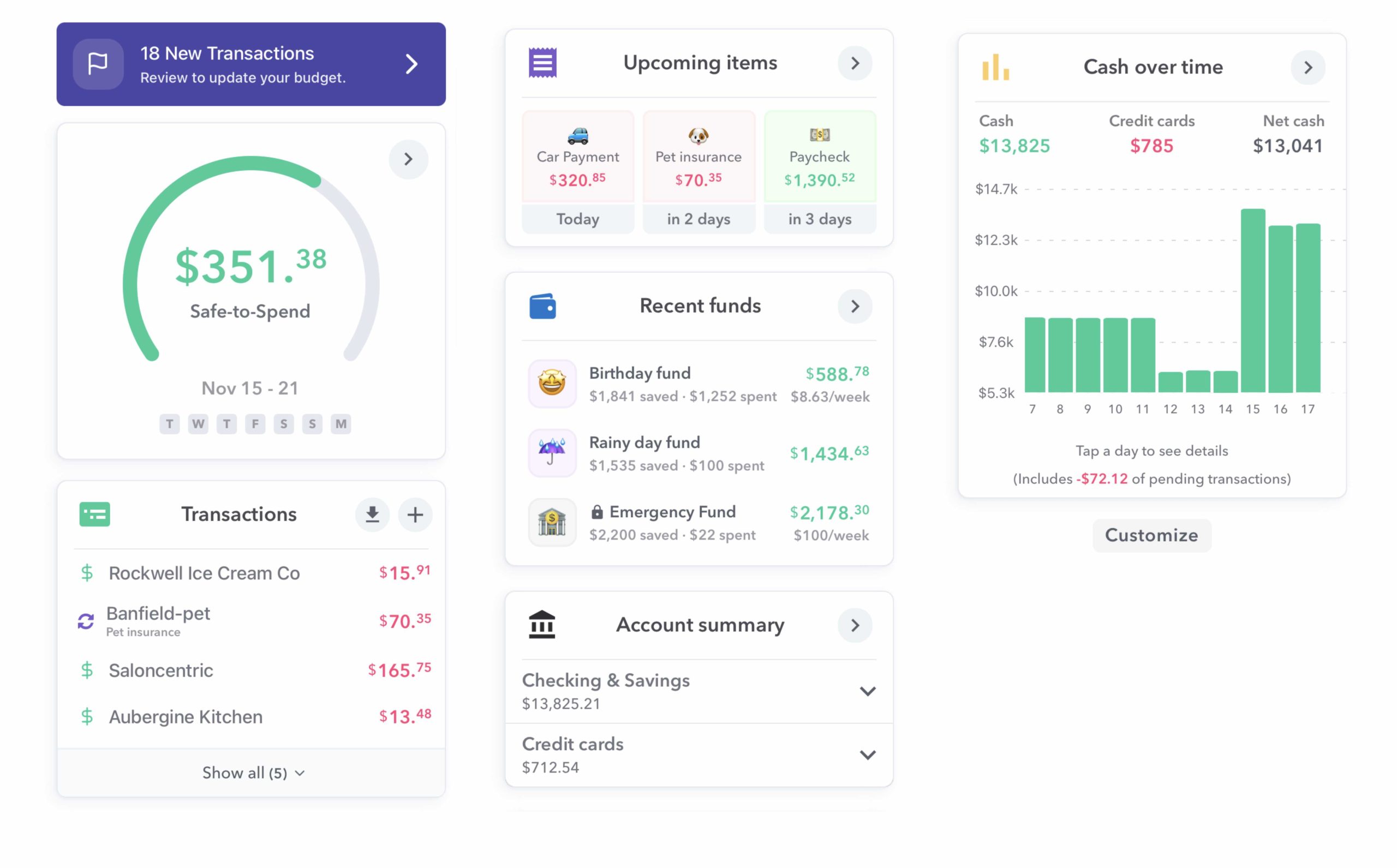
The Dashboard
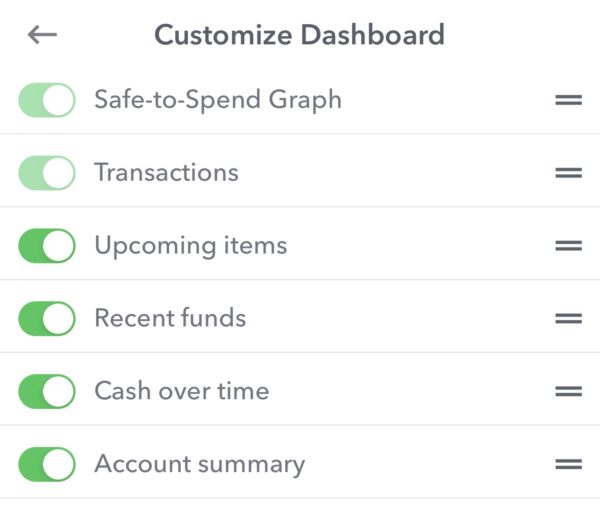
The dashboard is broken up into sections we call “cards”. Each card gives you different information and you can tap onto any card and drill in for more details. The cards on the dashboard are:
- Safe-to-Spend – This looks like speedometer and tells you how much is left in your Safe-to-Spend for the week.
- Transactions – A list of all the transactions that have come into Weekly including those that have been taken out of your Safe-to-Spend, mapped to recurring transactions, added to a fund or ignored.
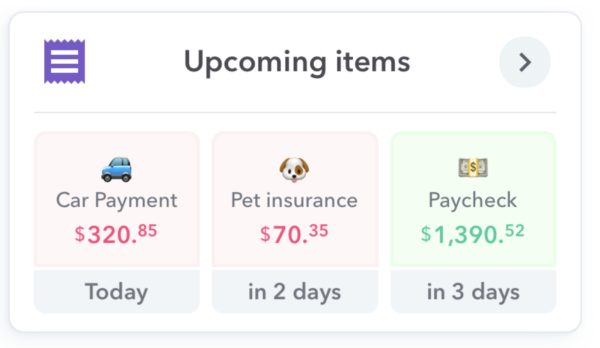
- Upcoming Items – A view into your upcoming bills and income.
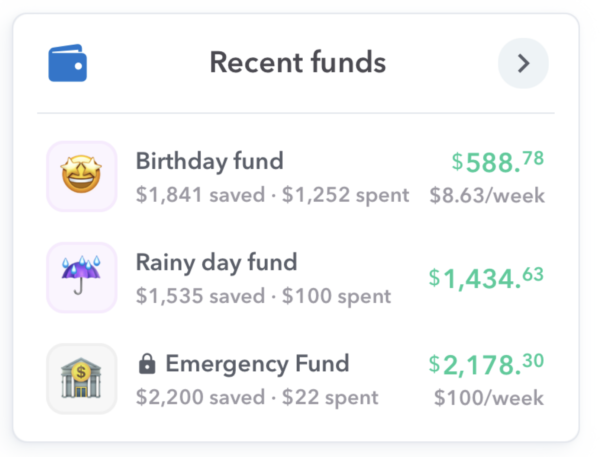
- Recent Funds – A set of funds that have been used in the past week.
- Cash Forecast – The amount of cash in your bank accounts minus credit card balances.
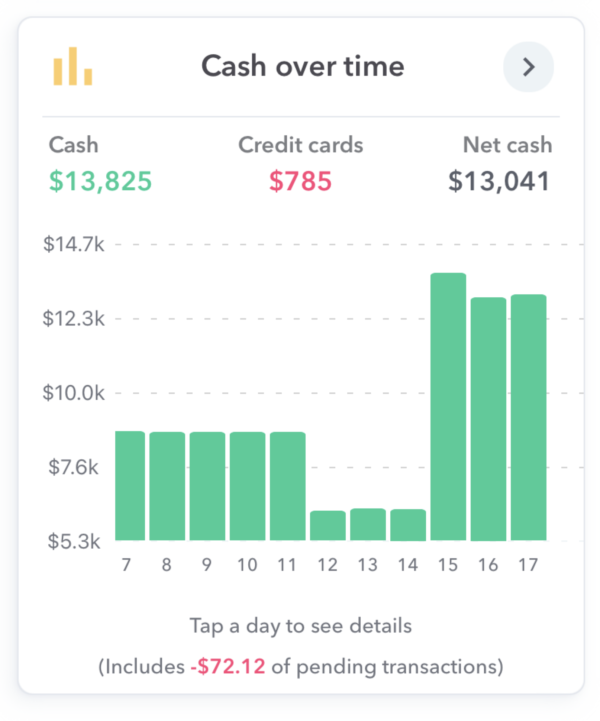
- Cash Over Time – The amount of cash in your bank accounts minus credit card balances.
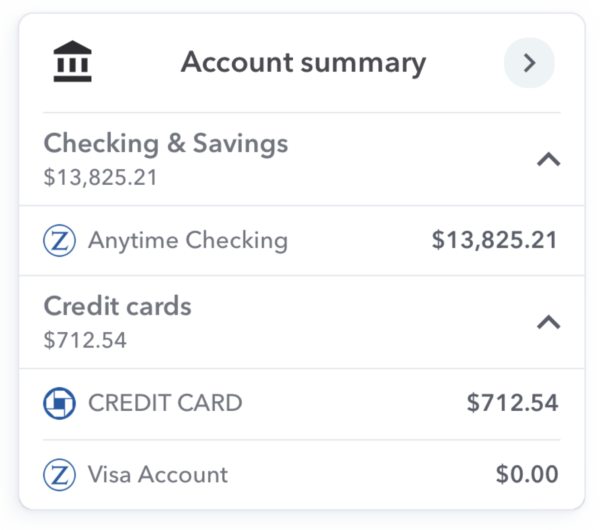
- Account Summary – A list of the bank accounts and credit cards that have been connected to Weekly.
Safe-to-Spend
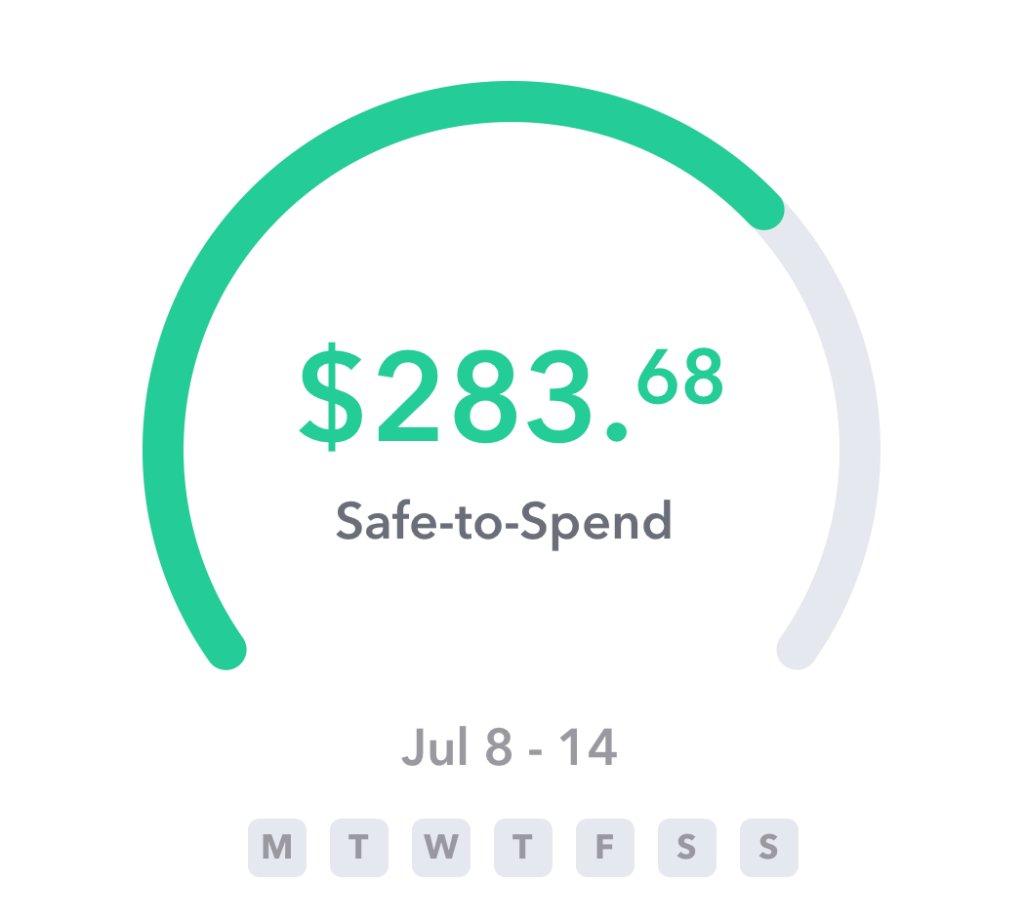
The top card is the classic Safe-to-Spend and it tells you how much you can spend on your day-to-day purchases in the current week. This is the heart and soul of Weekly. This number is calculated from the income and expense budget items you have added. The goal is to spend less than your Safe-to-Spend number. If you tap on the card you will see all the transactions that have gone into your Safe-to-Spend as well as how your Safe-to-Spend was calculated with your rollover (if you had rollover from the past week).
Transactions
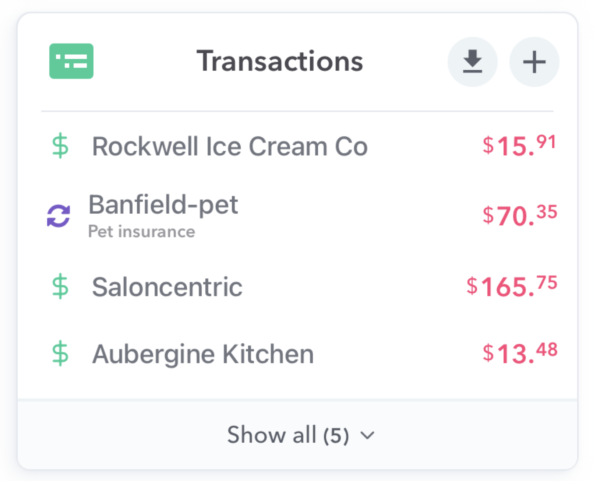
The Transactions card is a list of all the transactions in your account, whether those have been added manually or downloaded from the bank. The transactions list in the card shows the title of the transaction, the amount as well as how it was mapped. The four different types of mappings are:
- Safe-to-Spend: A dollar sign ($) indicates the transactions was withdrawn from Safe-to-Spend
- Fund: The wallet indicates you added it to a Fund
- Recurring: Two arrows point to one another indicate the transactions was a mapped to a recurring transaction
- Ignored: A circle with a line through it indicates it was ignored
Note: By default the latest four transactions are shown but you can tap “Show all” to see a list of all the transactions for the week.
Upcoming Items Report
The upcoming items card tells you about your bills and income events that are scheduled to happen soon. The next seven days of upcoming charges are shown on the dashboard. You can then tap on the “Upcoming items” heading to see a graphic visualization of your upcoming items. If you type on a budget item itself, it will show you the past transactions associated with that item.
Recent Funds
“Recent Funds” is a quick view into the current value of your funds. Weekly will surface three funds that have the most recent transactions in them which could be a “deposit” into them or it could be a transaction charged to them. Tapping on the “Recent Funds” heading will take you to the Funds dashboard where you can see the total value associated with all your funds if you have more than three. If you tap into a particular fund you will see all the transactions in that fund over time.
Cash Over Time
Weekly uses averages to help you understand what you can safely spend in a week but this is not the same as the actual cash in your account. For example, you have a lot more cash in your bank at payday or less right after your rent or mortgage is due but neither of these transactions would effect your Safe-to-Spend. But the Cash Over Time card gives you a view into whether the amount of cash you have is growing or shrinking over time. The amount of cash you have is calculated by taking your checking and savings balances and subtracting your credit card debt. You can tap on any date and see the transactions that were attributed to that date.
Account Summary
Account Summary shows you the current balances of any bank account you have connected to Weekly.
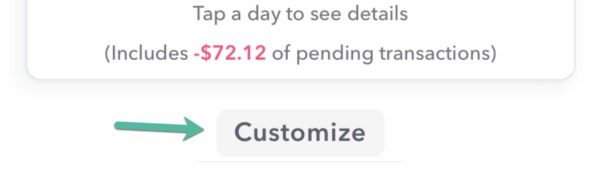
Customizing The Cards On Your Dashboard
The final feature of the dashboard is the ability to customize what cards you see on the dashboard itself. If you scroll down to the bottom of the dashboard you will see a gray button that says “Customize”.
If you tap on that, you will get a screen where you can toggle on and off the cards and also change the order they appear on your dashboard screen.
Why should I budget weekly?
Budgeting is all about habits. Building any successful habit takes effort but the right tool can make all the difference. Weekly is designed to support your natural patterns to make it easier to develop good budgeting habits.
Many budgeting apps break your income and expenses into monthly categories. But there are two reasons this does not work well.
1. A month is too long
Most people will overspend in the first few weeks.
2. Recurring and day-to-day expenses should be separated.
Recurring and day-to-day expenses are very different but most apps categorize them the same way. Recurring expenses are predictable and often happen monthly. Day-to-day spending is constantly happening and can fluctuate a lot. Approaching these separately makes it much easier to stay on budget.
Budget a week at a time
Budgeting one week at a time makes it a lot easier to get into a pattern staying within your limit. The consistency of a week (seven days with one weekend) makes it easier to plan for and more closely matches how we live life.
Weeks also happen 52 times per year. That gives you a lot of opportunities to check in and make sure you’re on track.
Use a weekly spending limit
Most budgeting apps ignore the difference between recurring expenses and day-to-day spending. They ask you to make one category for “car payment” and another category for “eating out”. But these two expenses are very different. A car payment is a specific amount that you can easily plan for. You set it up once when you buy a car and then it likely never changes. Day to day spending (like groceries, shopping and eating out) happen all the time. These decisions can happen multiple times a day and can throw your budget off.
This distinction is foundational to how Weekly works. Since recurring expenses are fairly consistent and easy to predict, we start by subtracting them from your regular income. We also subtract any of your savings goals from your income to find out how much money is left for day-to-day spending. We convert that remaining amount into a weekly average that we call your weekly spending limit. This amount is added to your Safe-to-Spend at the beginning of each week.
Anyone can budget weekly
Weekly budgeting works even if you aren’t paid weekly. Learn how Weekly averages your income and expenses to find your weekly spending limit.
Why does Weekly budget with averages?
Weekly is different from most other budgeting apps. Many other tools track your income and expenses month over month. Some apps provide a spending amount based on your checking account balance and upcoming bills and income.
Although these approaches have merit – we believe that budgeting can be simplified to better support our psychological patterns as humans. Using an average weekly Safe-to-Spend amount gives you the same amount of money to spend every week. This simple change helps create healthy patterns of regular spending and avoids the spending roller coaster that’s common when trying to tackle spending a whole month at a time.
With Weekly, you’re able to check in with your budget and make adjustments every seven days. Monthly budgets only provide a restart 12 times per year. These regular check-ins help to quickly identify when your spending is going off the rails and can help get you back on track.