
Funds Overview
Funds are a flexible way to save and track money for a specific purpose. You can think of funds as buckets that you can save to and spend from. They’re useful for building savings for fun things like vacation and birthdays. Or not so fun things like medical bills and car maintenance. You can use funds to manage discretionary spending between partners, or even track your child’s allowance. Funds are flexible!
Creating Funds
You can create a new fund from the Funds page on the Money tab. When creating a fund you can set a name, an emoji and background color, a contribution amount, and a starting balance.
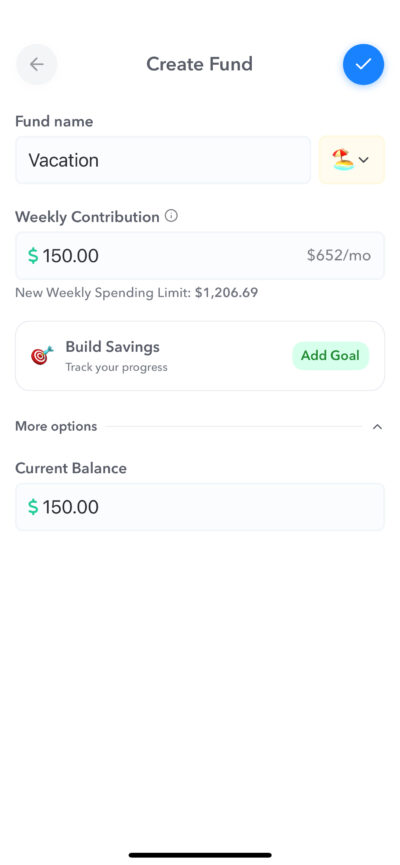
If you set a contribution amount to your fund, Weekly will automatically increase the fund balance each week.
Setting a Fund Goal
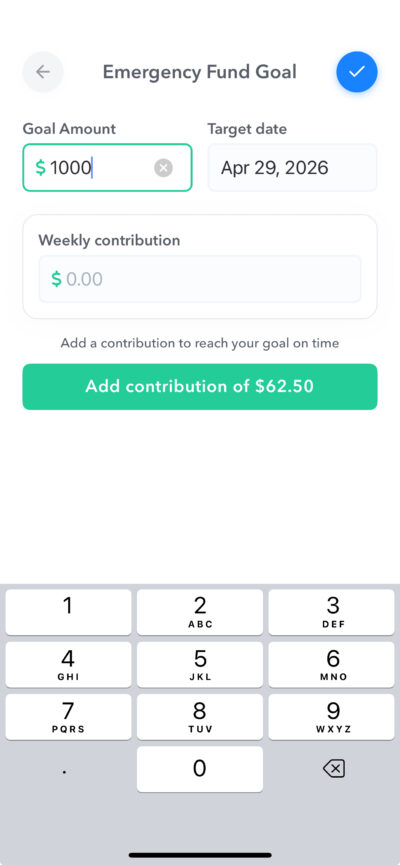
If you like, you can set a goal for your fund. You goal can include how much you are saving for as well as the goal date you want to save it by. If you include a goal date, Weekly will automatically calculate how much you need to save each week to hit your Goal amount by your target date and you can tap and add it to your budget.
How Contributions Effect Your Safe-to-Spend
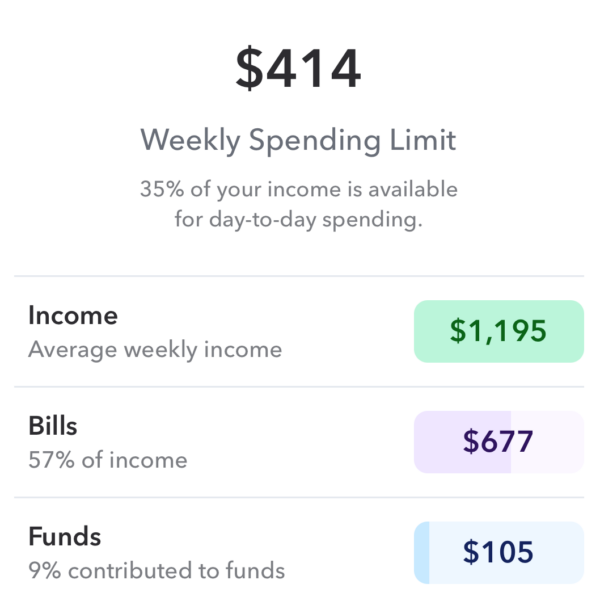
Contributing to a fund reduces the amount of money available in your Weekly Spending Limit as shown on the Budget tab. Each week a new transaction will be added to funds with a contribution amount.
Spending from funds
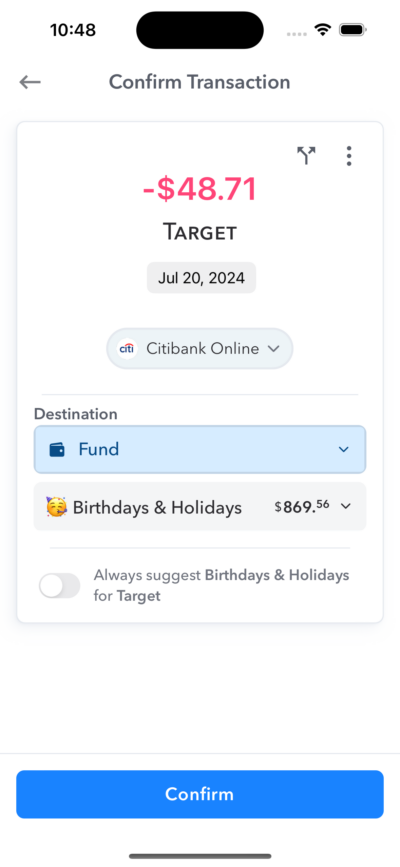
In addition to contributing to your funds you can also spend directly out of funds. When reviewing bank transactions simply select the “Funds” option and select the fund to spend from.
Read more about how to spend from funds.
Seeing all funds
You can keep up-to-date on all the funds in your account on the funds overview screen.
Read more about funds overview screen.
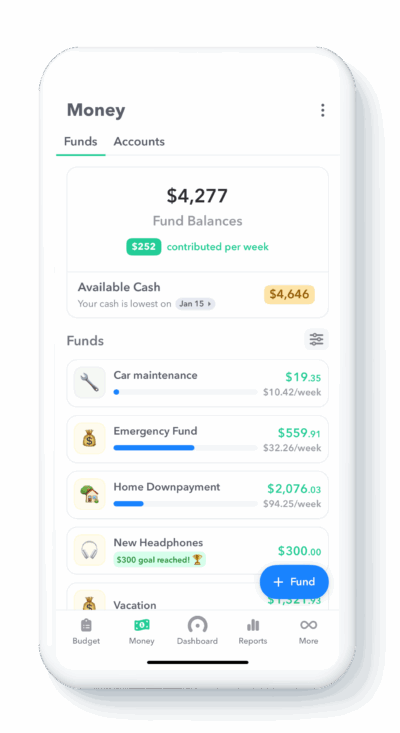
Locking and Archiving Funds You can lock a fund when you want to keep it active but don’t want to see it in your funds list. This can be useful for seasonal funds like Christmas or birthdays. Locked funds still receive weekly contributions. They are hidden from the list of funds when reviewing bank transactions but you can show them by tapping “Show locked funds”.
Locked funds can be shown by tapping Filter & sort and selecting Show locked. You can archive a fund when you’re done with it. This will stop the weekly contributions and the fund will not be visible unless you select Show archived from the Filter & sort options.
Read more about about locking and archiving funds.
How do funds work?
Funds allow you to track money outside of your Safe-to-Spend. Think of funds as buckets you can save to and spend from.Funds are flexible and can be used for all sorts of things like tracking a savings goal or holiday budget, managing spending between partners, or even tracking your kid’s allowance.
For full guide on funds please read our knowledgebase article: How funds work.
Creating a Fund
You can think of a fund as a bucket of money that you save to and spend from. You can define how much money you want to add and how often. Weekly will convert this into a weekly amount and automatically add money into that fund each week. And when the time comes you can spend from that fund.
Here are the parts of the Fund creation process.
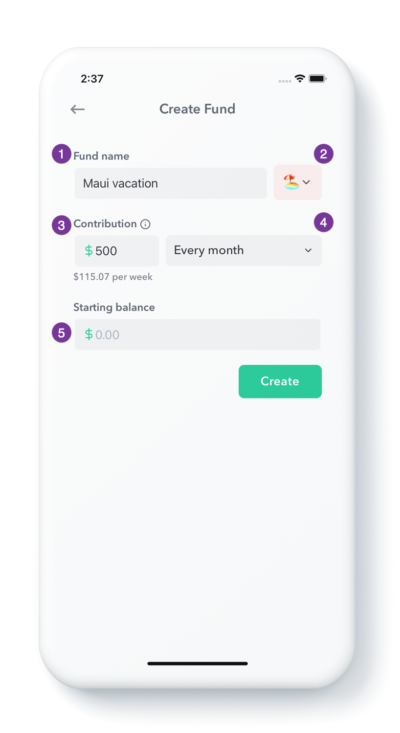
- Fund name: This is what you are saving for.
- Icon: Choose an icon for your fund and make it fun!
- Contribution: This is the amount you want to save during each interval.
- Savings Interval: This is how often you want to save your contribution.
- Starting Balance: What you have already saved. If you are just starting this amount would be blank. If you have already saved an amount, then add the amount you have saved.
The first step in setting up a fund is to just verbalize what you want to do. For example, “I want to add $500 to an Maui vacation fund every month and I haven’t saved anything yet.” So in the example of the Maui vacation fund, it would look like this:
- Fund name: Maui vacation
- Icon: Beach!
- Contribution: $500
- Savings Interval: Every month
- Starting Balance: $0 (Blank) Note: If you had already saved say $300 for this vacation, you would add $300 here.
Weekly will automatically convert this contribution amount and interval into the equivalent weekly amount of $115.07. At the start of your week it will automatically take this out of your Safe-To-Spend and build up your fund!
To see your progress you can check your Funds overview screen.
How do I see all my funds?
Your funds overview screen is your control panel for all your funds. You can see all the funds you have set up, their current balances, contribution amounts and how much you have spent out of each of them. Below is a guide to how to reach your funds overview screen.
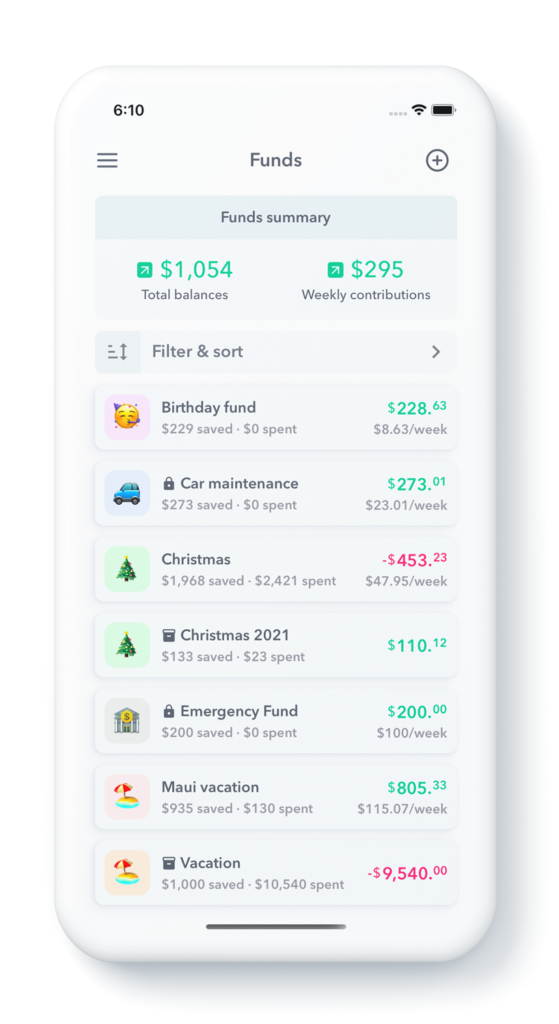
For full guide to the fund overview page please read: Fund Overview Screen
Funds Overview Screen
Your funds overview screen is your control panel for all your funds. You can see all the funds you have set up, their current balances, contribution amounts and how much you have spent out of each of them. Below is a guide to how to reach your funds overview screen.
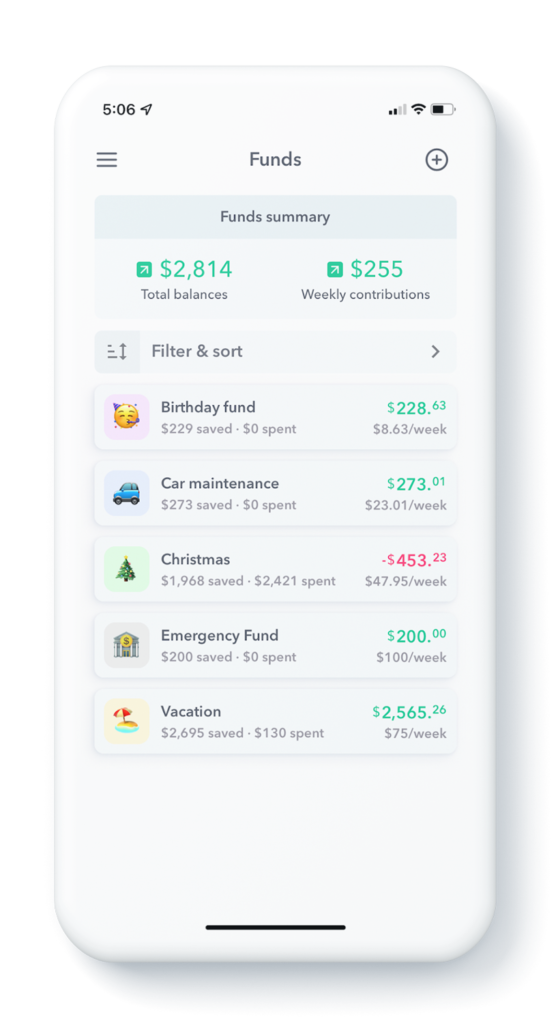
Note: You can reach the fund overview screen by swiping right on the main “Tracker” page and tapping “Funds”.
Let’s start by reviewing an individual fund.
Individual Fund
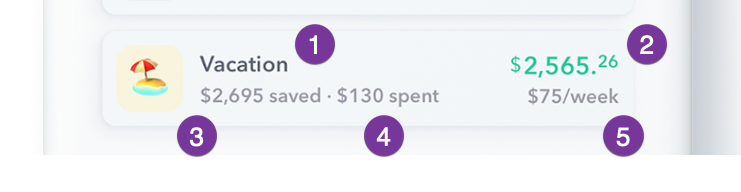
Here’s an entry for an individual fund with the definition for each of their parts.
In the example from the screen shot above, this is a fund that has been set up for a vacation. The user has saved a total of $2,695 in the fund over time, but has spent $130 of the fund giving the current balance of $2,565.26. In addition, every week the user is adding $75 additional dollars to the fund which will increase the current balance and the total saved.
- Fund Name – Vacation
- Current Balance – $2,565.26 – This is the total amount available to spent out of the fund.
- Saved – $2,695 – This is the total amount that has been saved in a fund before anything has been spent. So if nothing had been spent out of the fund, the Current Balance and Saved amounts would be equal. In this case though, $130 has been spent out of the fund already.
- Spent -$130 – This is how much money has been spent out of the fund.
- Contribution – $75 / week – This is how much money is being added to the fund each week.
Now let’s take a look at the Funds summary.
Funds summary
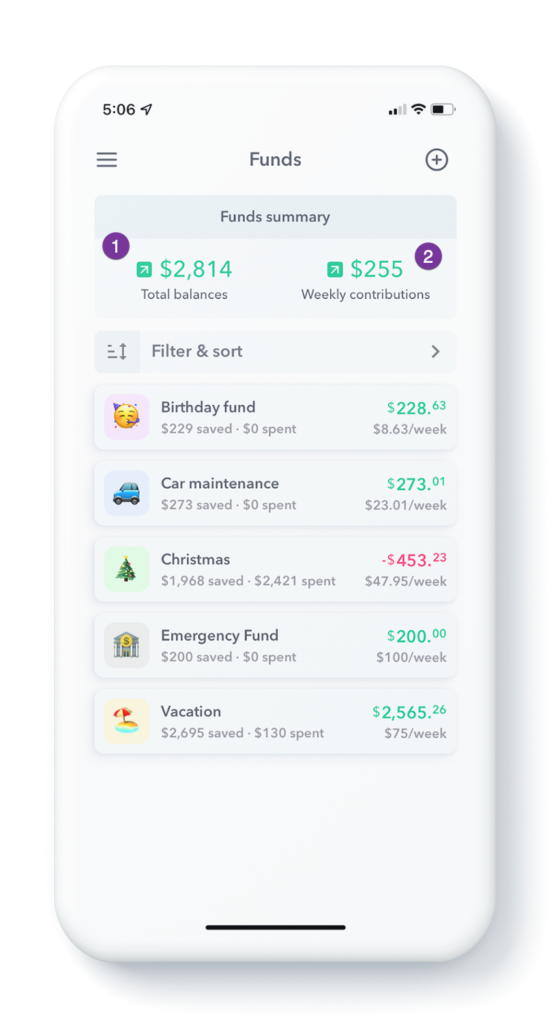
At the top of the screen you will see your funds summary. In the funds summary you can see the Total Balances and Weekly contributions for all of your funds in totality.
- Total balances: This is how much you have saved but have not yet spent in all your funds combined.
- Weekly contributions: How much you are contributing to your funds on a weekly basis.
Total Balance
So in the screenshot above, the total balance of $2,814 is sum of all the current balances in the funds. So currently in all the funds, they have an available balance (money that can be spent) of the following:
| +$228.63 | Birthday fund |
| +$273.01 | Car Maintenance fund |
| -$453.23 | Christmas fund |
| +$200.00 | Emergency fund |
| +$2,565.26 | Vacation fund |
| ——— | |
| $2,813.67 | Total, rounded to $2,814. |
$2814 is the total at the top of the screen. You may wonder why there is a negative balance in the Christmas Fund. That is because more things were bought with the Christmas fund than the fund had money for, resulting in a negative balance.
Weekly Contributions
When you set up your fund, you put in a contribution amount and an interval and Weekly converts this into its equivalent weekly amount. The sum of all the contributions from all the funds is what shows at the top of the screen.
| +$8.63 | Birthday fund |
| +$23.01 | Car Maintenance fund |
| +$47.95 | Christmas fund |
| +$100.00 | Emergency fund |
| +$75.00 | Vacation fund |
| ——— | |
| $254.59 | Total, rounded to $255 |
$255 is the total contribution amount that shows at the top of the screen.
Conclusion
The Funds overview screen is where you can see all the activity that is going on in your funds.
See also:
How do I create a fund?
Funds can be created during the onboard flow or at any time by tapping the menu item at the top left of the app and then tapping “Funds”
Learn more everything about how funds work in our Knowledge Base article -> How funds work.
Fund Goals
Fund Goals let you set a target amount for any of your funds in Weekly, along with an optional target date for when you want to reach it. The app automatically calculates how much you need to contribute each week to hit your goal and tracks your progress along the way.
Read the article below or watch the video for a walkthru.
What Are Fund Goals?
Fund Goals turn “someday” savings into concrete plans with specific targets and timelines. Instead of wondering “When will I actually have enough saved for that vacation?” you’ll see exactly how much to save each week and when you’ll reach your goal.
When you set a Fund Goal, Weekly:
- Calculates your required weekly contribution based on your target amount and date
- Shows your progress with a visual progress ring
- Tells you exactly how many weeks are left until you hit your target
- Gives you options to adjust if you fall behind or get ahead of schedule
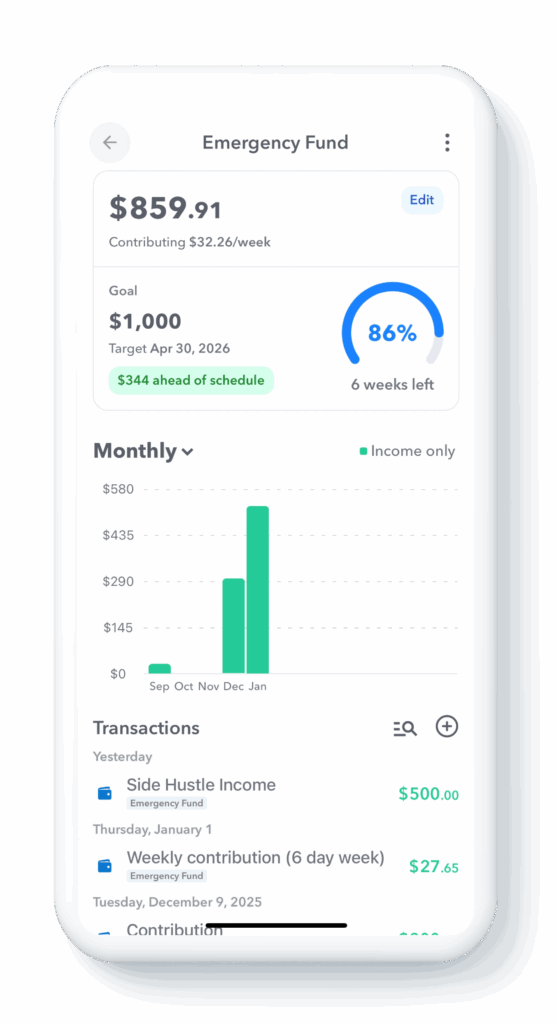
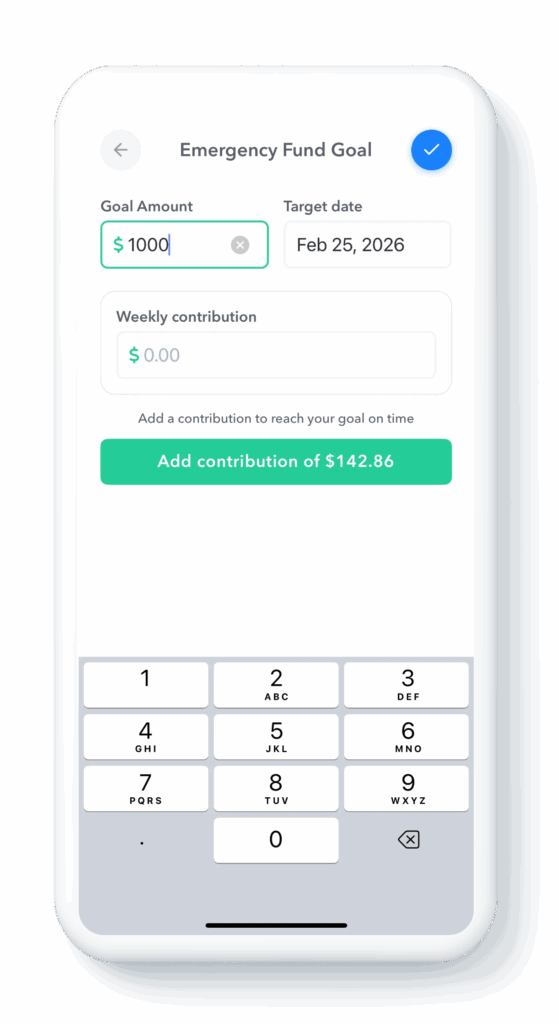
How to Set Up a Fund Goal
- Create a New Fund or Tap “Edit” in an existing fund
- You’ll see the option to add a goal
- Enter your target amount (how much you want to save)
- Optionally add a target date (when you want to reach your goal)
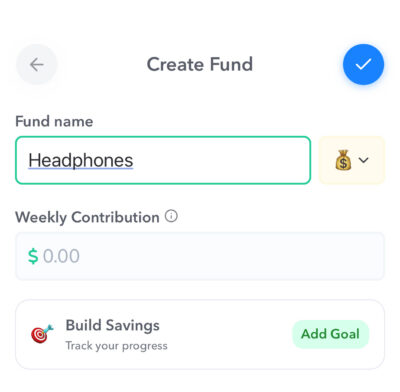
Weekly will immediately calculate how much you need to contribute each week to hit your target.
How Fund Goals Work Week by Week
Every week, Weekly guides you toward your goal:
- Your weekly contribution is automatically deducted from your Safe-to-Spend
- Your fund balance increases by the contribution amount
- The progress ring fills up as you get closer to your target
- The “weeks left” counter counts down to your goal date
This happens automatically each week as part of your regular budgeting cycle.
Tracking Your Progress
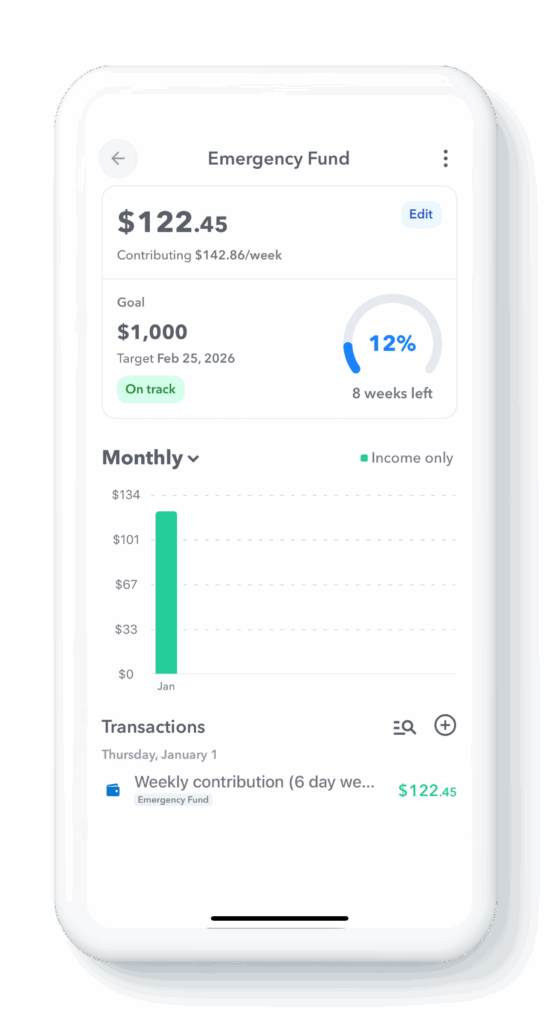
When you open a fund with a goal, you’ll see:
- A progress ring showing how close you are to your target
- Your current balance vs. your target amount
- The number of weeks left until you’re scheduled to hit your goal
- Your weekly contribution amount
What If You Get Ahead or Fall Behind?
Fund Goals are flexible and adapt to your real life:
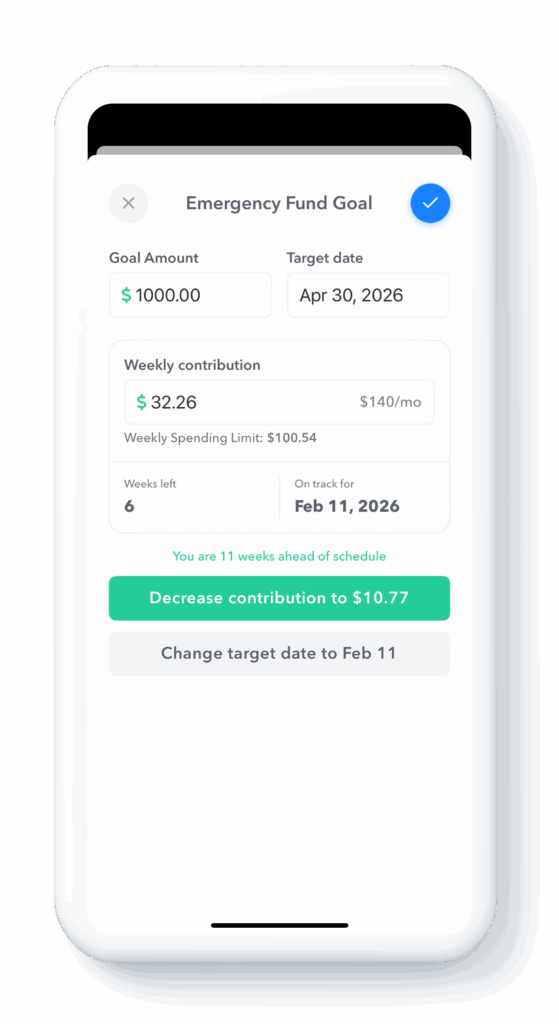
If You’re Ahead of Schedule
Weekly gives you two options:
- Reduce your weekly contribution and still hit your original target date
- Keep contributing at the same rate and reach your goal even sooner
If You Fall Behind
You can get back on track by:
- Adjusting your target date to give yourself more time
- Increasing your weekly contribution to catch up and meet your original date
Weekly makes it easy to see your options and choose what works best for your current situation.
Reaching Your Goal
When you hit your Fund Goal, Weekly celebrates with you! You’ll get a cheerful notification acknowledging your achievement.
After reaching a goal, you can:
- Set a new goal to keep building the fund (for example, increase your emergency fund from $1,000 to $2,000)
- Set your contribution to $0 so the money you were contributing flows back to your Safe-to-Spend instead
Tips for Using Fund Goals
Start with your Emergency Fund. Even a modest goal of $500-$1,000 can give you serious peace of mind, and seeing exactly when you’ll get there makes it feel achievable.
Be realistic with your target dates. It’s better to set a conservative timeline and get ahead than to set an aggressive goal and constantly feel behind.
Review and adjust as needed. Life changes, and your Fund Goals can change with it. Don’t be afraid to adjust your target date or contribution amount when circumstances shift.
Use multiple Fund Goals. You can set goals for different funds simultaneously—an emergency fund, vacation savings, and holiday gifts can all have their own targets and timelines.
Frequently Asked Questions
Do I need to set a target date?
No, the target date is optional. You can set just a target amount, and Weekly will show your progress without a countdown. However, adding a target date helps Weekly calculate your required weekly contribution.
Can I change my goal after setting it?
Yes! You can edit your fund goal at any time by tapping into the fund and selecting Edit. You can adjust your target amount, target date, or weekly contribution as your situation changes.
What happens to my fund if I don’t set a goal?
Funds work perfectly fine without goals. You can continue to contribute to a fund on any schedule you choose without setting a specific target. Fund Goals are simply an optional feature to help you reach specific savings targets.
Can I have a Fund Goal without weekly contributions?
Yes. You can set a target amount to work toward even if you’re not making regular weekly contributions. This is helpful for tracking progress on savings goals where you contribute irregularly.
Fund Goals is available now in the latest version of Weekly. If you haven’t updated the app yet, head to the App Store and grab the update.