
Fund Contributions & Spending
Funds allow you to automatically set aside money by setting a contribution amount. Each time you start a new week, Weekly will create a contribution transaction for each fund that has a contribution amount
The contribution amount reduces your weekly spending limit and increases your fund balance each week. If you change this amount in the middle of the week, both your Safe-to-Spend and your contribution transaction for the current week will be automatically updated.
Understanding contribution intervals: When you set a contribution (like monthly or biweekly), Weekly converts it to a weekly amount to integrate with your weekly budgeting system. Monthly contributions use 4.34524 weeks per month (52.14286 weeks per year ÷ 12 months) to ensure accurate year-round calculations. For example, a $100 monthly contribution equals approximately $23.02 per week.
Learn more about how funds work.
Using funds for purchases
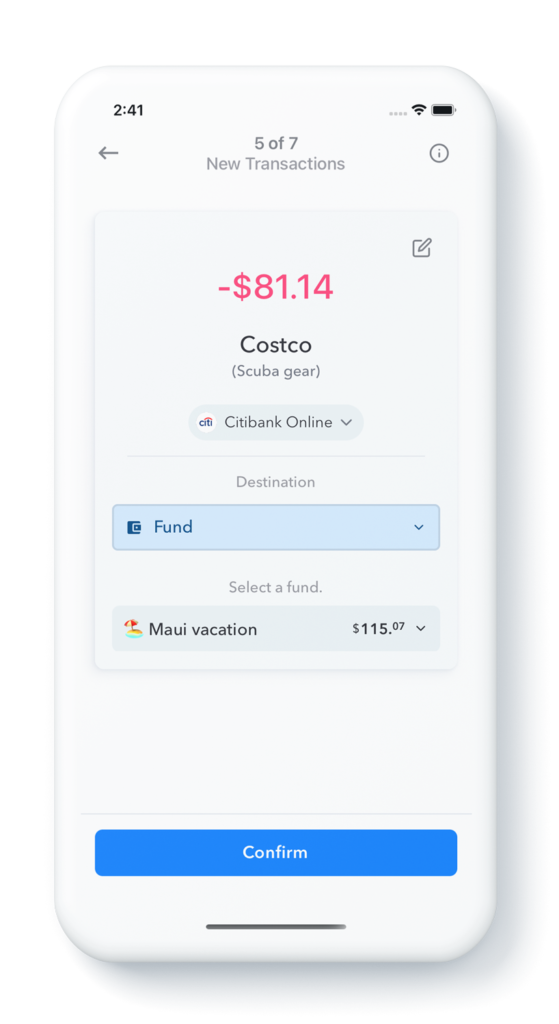
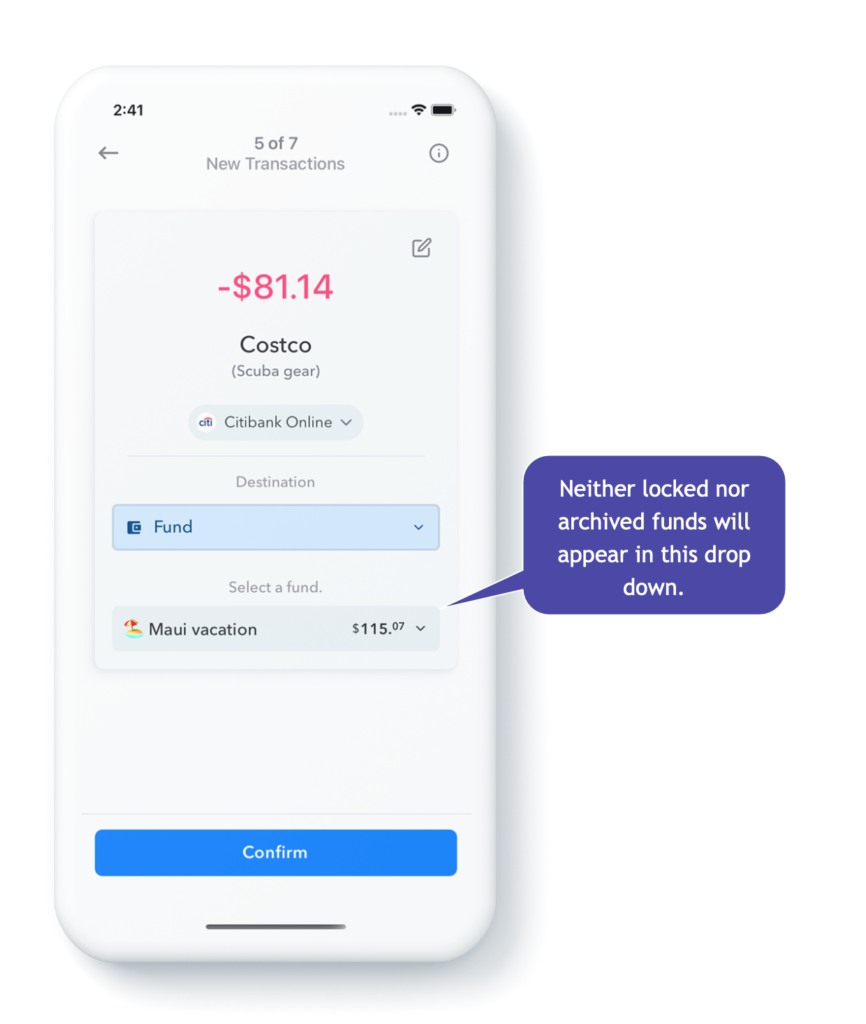
When the time comes to use the money in a fund to purchase the thing you have been saving for, you can do so on the Transaction review screen. Under “Destination” instead of paying for the item out of your Safe-To-Spend, you select the fund you want to spend out of. This reduces the amount in the fund and leaves your Safe-To-Spend undisturbed. Here’s how.
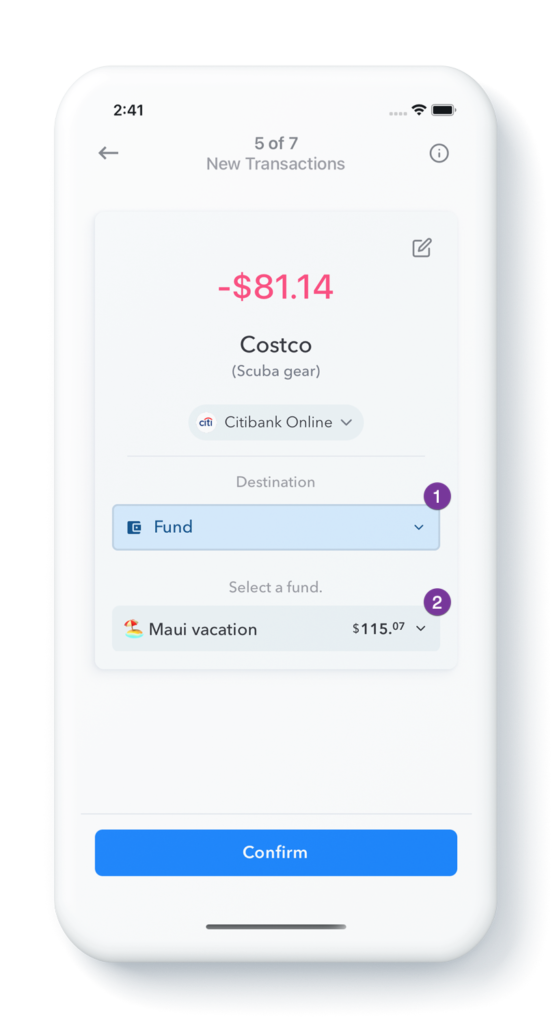
So, to take the money from a purchase from a fund instead of from your Safe-To-Spend there are two steps.
- Select “Fund” from Destination.
- Under “Select a fund.” chose the fund that the money should come from.
That’s it!
Also see:
What are locked and archived funds?
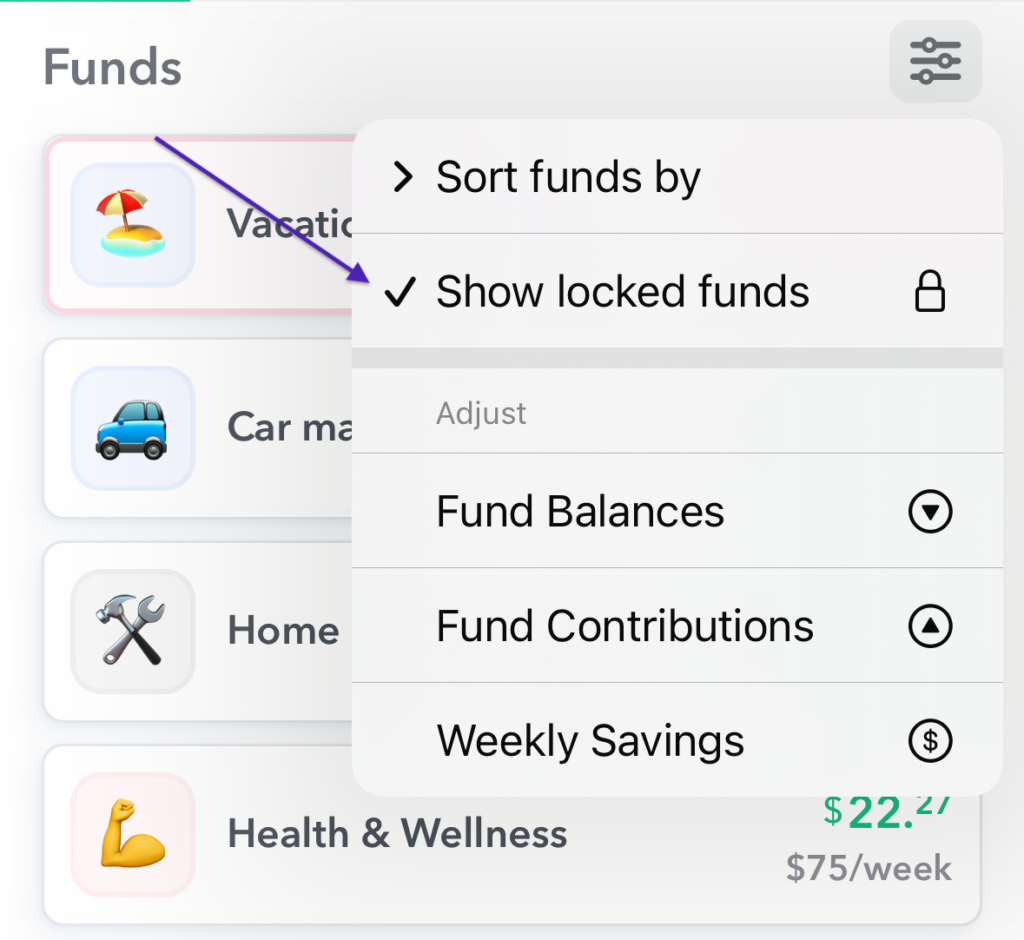
You can lock a fund when you want to keep it active but don’t want to see it in your funds list. This can be useful for seasonal funds like Christmas or birthdays. Locked funds still receive weekly contributions but are hidden by default when reviewing bank transactions. Locked funds can be shown or hidden on the funds page by tapping the slider icon above the funds.
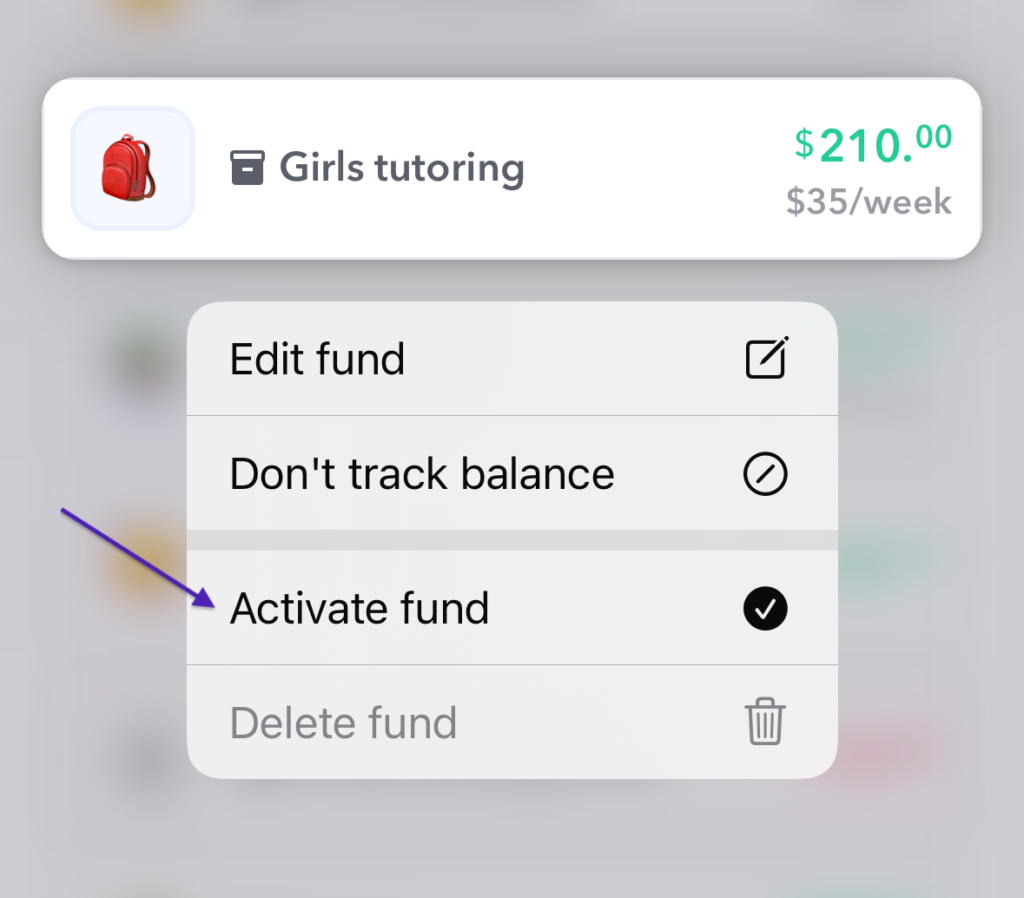
You can archive a fund when you’re done using it. This will stop the weekly contributions and the fund will not be visible in your funds list. Archived funds can by seen by tapping the three dots on the top right of the Funds page and selecting “Show Archived”. You can re-activate an archived fund by long pressing on it and selecting “Activate fund”.
For a full breakdown on locking and archiving funds, please read our knowledge base article Locked and Archived Funds
Locked and Archived Funds
As you are building up your funds inside of Weekly, you may want to keep them out of sight until it’s time to spend money out of them or in some cases a fund may have served its purpose and you want to put it away for good.
Locking and archiving funds are two ways to manage access to funds. Here’s the difference between the two.
What Are Locked Funds?
Locking  a fund is a way of keeping a fund active but guarding access until you are ready to use it. With locked funds, the weekly contributions still flow into the fund and your Safe-to-Spend will still be reduced but the fund will no longer appear on the transaction review screen.
So, let’s say that you were creating a car fund, but you didn’t want to take money out of it until you were ready to purchase a car. If you lock a fund, then when your transactions come through, the locked fund will not appear in the list of funds from which you can take the money. The weekly contributions will continue into the fund until it is archived or you edit the contribution amount and set it to zero.
What Are Archived Funds?
You use archiving  of funds when you are done with a fund, you don’t want to use them anymore, they are no longer active and you do longer want to contribute to them. Archiving funds is a way of putting them away for good. So let’s say for example you had a Christmas 2021 fund. Once Christmas 2021 has come and gone, you want to make sure you no longer contribute to and no longer spend from that fund. This is when you would archive the Christmas 2021 fund.
How To Lock, Archive or Delete a Fund
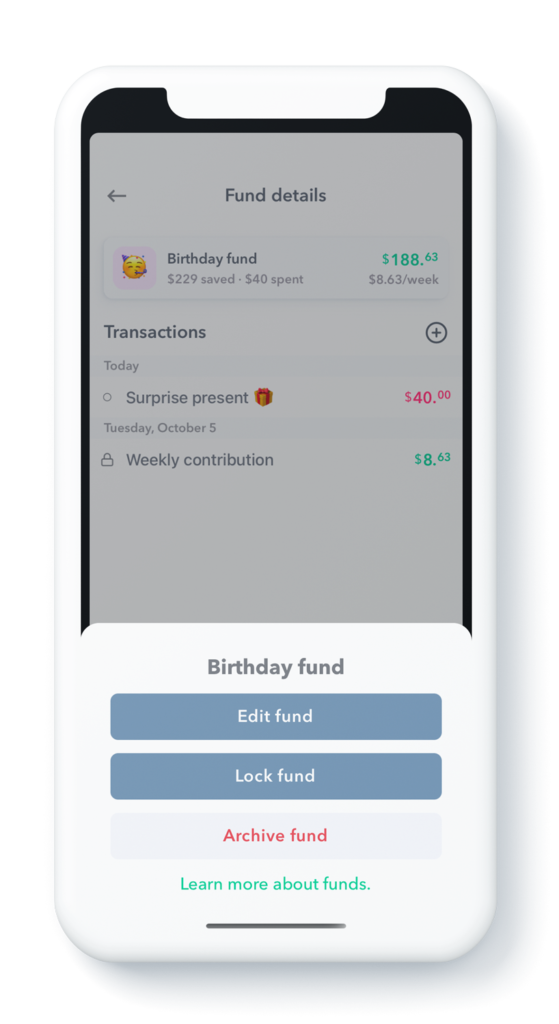
You can lock a fund by going to the fund detail screen and then tapping the fund name. This brings up the dialog box to lock or archive a fund. If there are no transactions in the fund you will also have the option to delete the fund.
Seeing Your Archived and Locked Funds
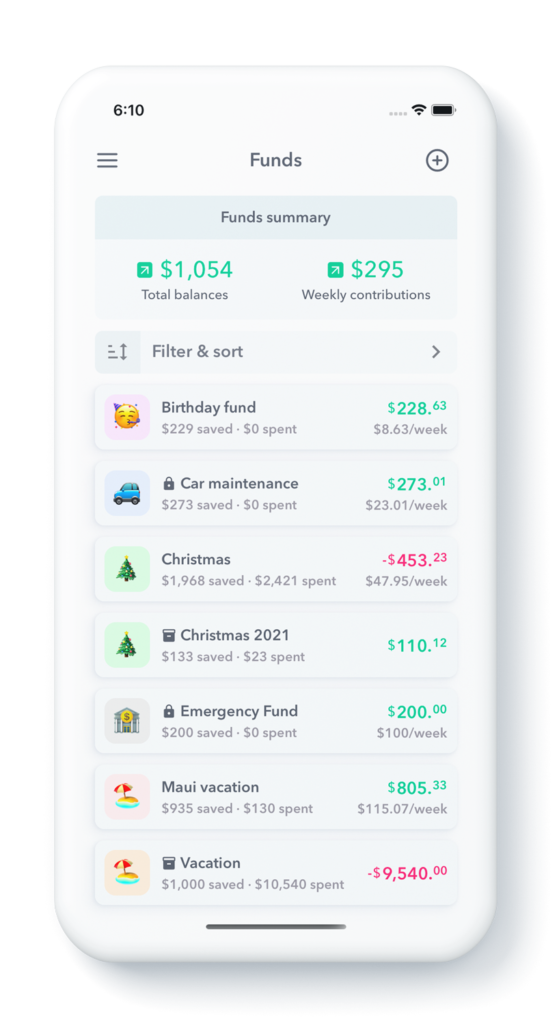
The first step reviewing your locked and archived funds is to make sure that they are shown in the list of funds. You do this by tapping “Filter & sort” and then turn on what funds you want to see.
Your locked funds will show up in your list of funds with a small lock next to them.
Your archived funds will show up with banker’s box icon.
Summary
Locking and archiving your funds are a couple of features that lets you manage access to your funds. Locking a fund makes sure you don’t draw from the fund until you are ready to. Archiving a fund allows you to put a fund away when you are done with it ending both contributions to the fund and access to withdraw from it. You can also delete funds that don’t have any transactions in them.
For more see the blog post “Lock and Archive Funds to Manage Their Availability“.
How do I use funds for purchases?
When the time comes to use the money in a fund to purchase the thing you have been saving for, you can do so on the Transaction review screen. Under “Contribution”, instead of paying for the item out of your Safe-To-Spend, you choose the fund you want to spend out of. This reduces the amount in the fund and leaves your Safe-To-Spend undisturbed.
For detailed description on how to do this, please read our Knowledge Base article: “Using funds for purchases“.